AI Image to Image
Transform images with AI style transfer
How to use AI Image to Image
- Upload your main image that you want to transform
- Optionally upload a style reference image for visual guidance
- Adjust the Image Strength slider to control how much the result resembles your main image
- Adjust the Style Strength slider to control how much the result follows your style image
- Enter a detailed text prompt describing the transformation you want
- Click "Generate" to let AI transform your image based on your prompt and settings
- Download your transformed image when processing is complete
Create AI images from any photo
Transform a simple photo into a polished AI image using ModernPhotoTools image-to-image generator. Combine your input image with text prompts and strength controls to decide how boldly the AI reimagines the style, colors, and mood of your scene.
How to create effective prompts
Ideal prompt structure
[Main subject] + [Environment / Setting] + [Style] + [Lighting / Mood] + [Details / Adjectives] + (optional) [Camera / Perspective / Composition info]
Role of negative prompts
Remove unwanted elements that the AI might generate based on its interpretation of your positive prompt, such as poor quality, extra fingers, or distorted features.
Use seeds for consistency
AI image generators can produce a variety of images from the same prompt. Enable the 'seed' option, and change the prompt with the same seed number to see consistent images.
Note: Upload a main image to transform and optionally a style reference image for visual guidance.
1. Main Image
The image you want to transform
Drag and drop your image here
or click to browse
Supported formats: JPEG, PNG (max 5MB)
2. Style Reference Image (Optional)
Upload an image to use as style guidance
Drag and drop your image here
or click to browse
Supported formats: JPEG, PNG (max 5MB)
Higher strength makes the result look more like your main image
Higher strength makes the result look more like your style image (disabled - upload a style image first)
💡 Tips for better results:
- • Be specific about the style, mood, or transformation you want
- • Mention artistic styles (watercolor, oil painting, digital art, etc.)
- • Include lighting and atmosphere details (dramatic, soft, bright, etc.)
- • Use the Image Strength slider to control how much of the original to keep
- • Use the Style Strength slider to control style reference influence
Result
Upload and process an image to see the result here
Transform existing photos into new AI images
Use the image-to-image tool to restyle, refine, or completely reimagine your images while keeping the core composition in place.
An AI image transformer for fresh compositions
Use the image-to-image tool to restyle any photo into a new composition while keeping the main layout recognizable. The model analyzes structure, lighting, and style, then rebuilds textures, colors, and details so the result feels like a new version of the same scene.
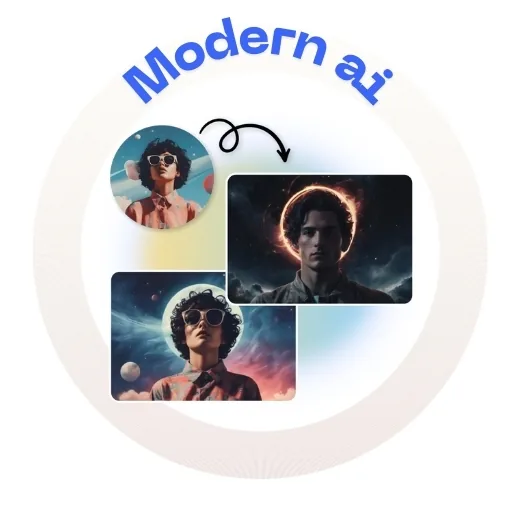
Personalize every image with detailed text prompts
Guide the AI with short prompts that describe what you want to see more of and what to avoid. Combine your source image with clear directions about style, mood, and subject so each generation moves closer to your ideal result without endless trial and error.
- Add or remove elements by describing them in natural language.
- Specify materials, lighting, camera angle, or artistic style.
- Use prompts to keep key subjects while refreshing the overall look.
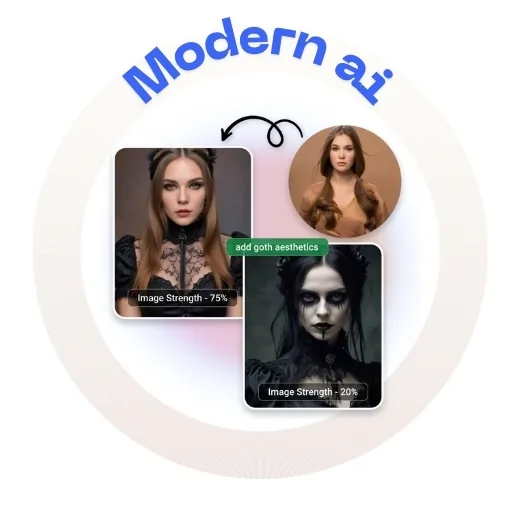
Use prompts for precise modifications and scene updates
Describe focused changes such as “add a golden sunset,” “make the city look futuristic,” or “turn this into a painterly illustration.” The AI applies your instructions across the image so you can explore variations and refinements without manual brushing.
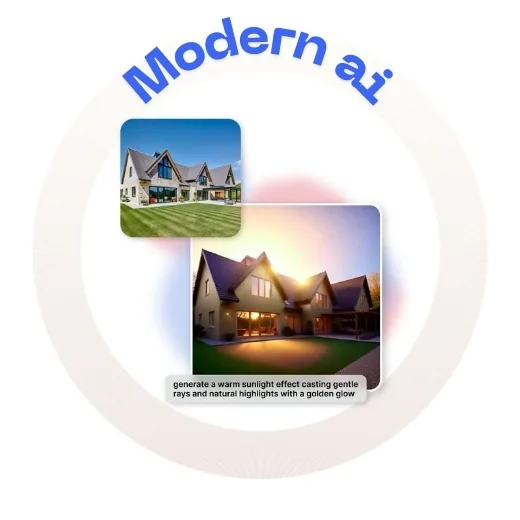
AI Image to Image: frequently asked questions
Learn how to control image-to-image generations, work safely with personal photos, and get the most out of prompts and strength settings.
About AI Image to Image
Our ai image to image tool uses advanced AI algorithms to transform any image based on text prompts and optional style references, with adjustable strength controls for precise artistic control. This tool is perfect for photographers, designers, social media managers, and anyone who wants to enhance their images.
Unlike other tools, ModernPhotoTools offers this service completely free with no watermarks. Try it now and see the difference!