How to Create Nano Banana 3D Caricatures: The Complete Step-by-Step Guide
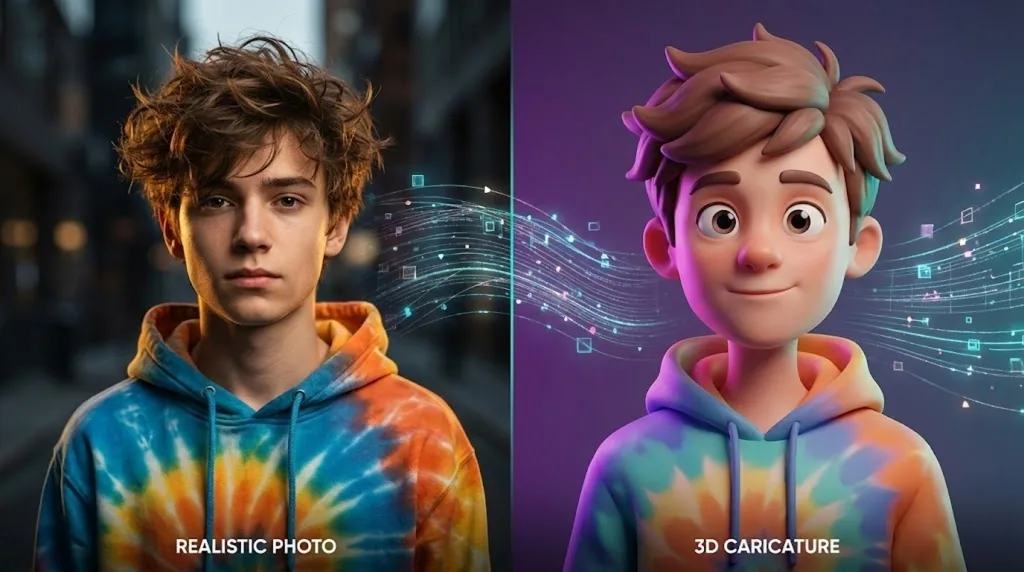
The Nano Banana 3D style: smooth materials, expressive features, and bold lighting
Quick answer: You can create a Nano Banana 3D caricature in two ways. The fastest method is uploading your photo directly to a purpose-built AI tool — no prompts needed, result in seconds. The manual method uses Google Gemini with the viral prompt formula for full creative control. This guide covers both, plus pro tips and common mistakes to avoid.
Table of Contents
- What Is the Nano Banana 3D Trend?
- Why This Style Works for Avatars and Content
- The Two Methods: One-Click vs. Gemini
- Step-by-Step: One-Click Method (Fastest)
- Step-by-Step: Gemini Prompt Method
- Practical Example: Profile Picture Transformation
- Pro Tips for Crisp Results
- Common Mistakes to Avoid
- Frequently Asked Questions
- The Future of 3D AI Avatars
What Is the Nano Banana 3D Trend?
The Nano Banana 3D trend is a viral AI art style that produces polished, Pixar-inspired caricature portraits. The signature look combines three visual elements: smooth, clean surface materials, soft ambient lighting that wraps evenly around the subject, and slightly exaggerated facial features that preserve likeness while adding a stylized, three-dimensional quality.
The name "Nano Banana" emerged from early social media posts where creators shared side-by-side comparisons of their real photos and AI-generated 3D versions. The style spread rapidly because the results are immediately recognizable, flattering, and versatile — they work equally well as social media profile pictures, YouTube thumbnails, LinkedIn avatars, and gaming personas.
Unlike traditional caricature art, the Nano Banana style is not about distortion for comedic effect. It enhances rather than exaggerates, giving subjects a polished, animated-film quality without making them unrecognizable.
Why This Style Works for Avatars and Content
The Nano Banana 3D look solves a practical problem: real photos often look inconsistent across platforms — too casual for LinkedIn, too formal for Discord, or simply low quality when cropped to avatar size. The 3D style bridges that gap.
- Instantly recognizable, high-contrast look that reads well at small sizes
- Works across platforms: LinkedIn, Instagram, X, Discord, YouTube
- Preserves facial likeness while adding a creative, branded quality
- Requires no design skills when using the right tools
- Scales well — retains sharpness at Retina and 4K screen resolutions
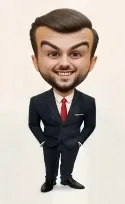
The polished 3D look that defines the Nano Banana trend
The Two Methods: One-Click vs. Gemini
| Factor | One-Click Method (Modern PhotoTools) | Gemini Prompt Method |
|---|---|---|
| Time required | Under 30 seconds | 5–10 minutes |
| Prompt writing | None required | Required — see formula below |
| Consistency | High — optimized for this style | Variable — depends on prompt quality |
| Creative control | Style presets (Funny, Cute, Professional) | Full — adjust attire, background, mood |
| Output resolution | High quality, upscalable | Often lower — upscaling recommended |
| Best for | Fast avatars, beginners, batch creation | Custom scenes, advanced users, unique outputs |
Recommendation: Start with the one-click method. If you want more control over attire, background color, or scene details, use the Gemini method. Both paths are covered step by step below.
Step-by-Step: One-Click Method (Fastest)
Modern PhotoTools offers three style variants depending on the look you want. Choose the one that matches your use case, then follow the same four-step process for each.
Funny Style — AI Caricature
Exaggerated features, big-head 3D style
Best for: social media, gaming profiles, playful content. Adds expressive exaggeration while keeping the 3D polished aesthetic.
- Go to AI Caricature Tool
- Upload a clear selfie
- Select 3D Exaggerated style
- Download your result
Cute Style — AI Cartoon
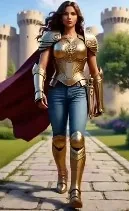
Softer Disney/Pixar-like 3D look
Best for: Instagram, TikTok, personal branding. Produces the soft Pixar-style look with clean materials and smooth shading.
- Go to AI Cartoon Tool
- Upload your photo
- Style applies automatically
- Download your result
Professional Style — AI Avatar

Professional yet stylized for LinkedIn and work profiles
Best for: LinkedIn, professional bios, speaker pages. Preserves strong likeness while applying the Nano Banana texture and lighting.
- Go to AI Avatar Generator
- Upload a front-facing photo
- Select your preferred style preset
- Download your result
Create Your 3D Avatar in Seconds
No prompts. No design skills. Upload and download.
Make a 3D Caricature →Step-by-Step: Gemini Prompt Method
For full creative control over background, attire, and scene details, the Google Gemini method gives you the most flexibility. Follow these steps exactly for reliable results.
- Open Google Gemini. Use the web app at gemini.google.com or the mobile app. Confirm your version supports image uploads — this feature requires Gemini Advanced or the latest Gemini app update.
- Prepare your source photo. Choose a clear, well-lit portrait with a simple or plain background. Front-facing photos with even lighting produce the most consistent 3D results. Avoid heavily shadowed, blurry, or group photos for this step.
- Upload your photo to the Gemini prompt window. Attach it directly in the chat interface before entering your prompt text.
-
Use the core viral prompt formula:
A highly stylised 3D caricature of the person in the uploaded image, with expressive facial features and playful exaggeration. Rendered in a smooth, polished style with clean materials and soft ambient lighting. Bold colour background to emphasise the character's charm and presence. -
Customize with optional additions. Append any of these to the core prompt before submitting:
- Attire: "wearing a red beanie and a graphic t-shirt"
- Background: "vibrant teal studio backdrop"
- Mood: "confident and slightly smiling expression"
- Output format: "square crop, centered composition"
- Submit and evaluate the result. If the first output misses the mark — wrong exaggeration level, flat lighting, or background issues — refine your prompt by specifying exactly what to correct rather than rewriting from scratch.
- Upscale before using. Gemini outputs are often lower resolution than dedicated tools. Run the result through the AI Image Upscaler to get a sharp, print- and Retina-ready file.
Iteration tip: If your first Gemini result is close but not quite right, follow up with a targeted correction: "Keep the same character, but make the background deeper blue, add more shine to the skin materials, and reduce the exaggeration slightly." This is faster than generating from scratch.
Practical Example: Profile Picture Transformation
Here is a real-world workflow showing how both methods apply to a single use case: creating a LinkedIn-ready 3D avatar from a casual smartphone selfie.
Starting photo conditions
- Indoor selfie, soft window light from the left
- Plain white wall background
- Casual clothing, neutral expression
- Slightly low resolution (smartphone front camera)
Desired output
- Professional yet distinctive LinkedIn profile picture
- 3D polished look with clean materials
- Neutral or gradient background
- High resolution, sharp at avatar size
Method chosen: AI Avatar (One-Click)
Upload the selfie to the AI Avatar Generator, select the professional preset, download, and run through AI Image Upscaler for crisp output. Total time: under 2 minutes. The result preserves facial likeness while applying the smooth 3D material and lighting of the Nano Banana style — visually consistent across LinkedIn, email signatures, and speaker bio pages.
When to use Gemini instead
If the same person wants a version with specific attire — a suit jacket in a particular color, or a branded background — the Gemini method gives the precision to specify those details directly in the prompt. The tradeoff is time and iteration: expect 5–10 minutes to get a result that matches the brief, plus upscaling.
Pro Tips for Crisp Results
Photo Quality Determines Output Quality
Start with the sharpest, best-lit photo you have. Even the best AI tools cannot fully recover detail from blurry or heavily compressed source images. A clear, front-facing selfie in soft natural light will consistently produce better results than a dark, grainy, or heavily filtered photo.
Plain Backgrounds Improve Edge Detection
For both methods, a simple or plain background in your source photo helps the AI correctly identify the subject's edges — especially around hair, ears, and shoulders. Complex or busy backgrounds sometimes cause edge artifacts or blending issues in the final 3D output.
Always Upscale Before Publishing
Profile pictures are displayed at small sizes but often viewed zoomed in, especially on high-DPI (Retina) displays. Running your final avatar through the AI Image Upscaler ensures it stays sharp at 2x and 4x pixel densities without visible compression artifacts.
Test Multiple Style Presets
The three presets — AI Caricature, AI Cartoon, and AI Avatar — produce noticeably different outputs from the same source photo. It takes under two minutes to test all three and compare. Different platforms call for different levels of exaggeration: gaming profiles can handle more stylization than LinkedIn or professional bios.
Explore Related Styles
Once you have the Nano Banana workflow down, the same tools support other viral AI art styles. The Studio Ghibli AI Art Guide walks through a similar process for hand-painted anime aesthetics if you want to expand beyond the 3D look.
Common Mistakes to Avoid
What Works
- Using a sharp, well-lit front-facing photo as source
- Plain or simple background in the source image
- Testing all three style presets before deciding
- Upscaling before publishing to any platform
- Iterating on Gemini prompts rather than starting over
- Specifying exact attire and background details in Gemini
What Fails
- Using group photos — AI struggles to isolate the right subject
- Heavily filtered or edited source photos
- Vague Gemini prompts: "make it 3D and cool"
- Skipping upscaling and publishing low-res outputs
- Rewriting the entire Gemini prompt when one element is off
- Using side-facing or extreme-angle portraits as source
| Weak Gemini Prompt | Strong Gemini Prompt | Why It's Better |
|---|---|---|
| "Make a 3D version of this person" | "A highly stylised 3D caricature of the person in the uploaded image, rendered with smooth polished materials, soft ambient lighting, and a vibrant teal background" | Specifies materials, lighting, and background — the three elements that define the Nano Banana style |
| "Cartoon avatar for LinkedIn" | "3D caricature with slightly exaggerated features, professional attire — navy blazer — and a clean neutral grey gradient background, polished Pixar-style rendering" | Defines attire, background, exaggeration level, and rendering style in one brief |
| "Make it look like Nano Banana style" | "Smooth 3D character portrait with clean surface materials, expressive but not extreme facial exaggeration, bold single-color background, cinematic ambient lighting from above" | Describes the style visually instead of referencing a trend name the AI may not recognize |
Frequently Asked Questions
How do I make a Nano Banana 3D caricature for free?
Upload your photo to the AI Caricature or AI Cartoon tools on Modern PhotoTools. No prompts required — the 3D style applies automatically. For the Gemini method, use the free tier of Google Gemini with the core prompt formula provided in this guide.
What photo works best as source input?
A sharp, front-facing portrait with soft, even lighting and a plain or simple background. Avoid group photos, heavily filtered images, side-angle portraits, or blurry shots. The quality of your source photo directly affects the quality and likeness accuracy of the final 3D output.
Does the AI preserve my facial likeness in the 3D version?
Yes — all three tool presets (AI Caricature, AI Cartoon, AI Avatar) are designed to retain recognizable likeness while applying the 3D style. The AI Caricature preset adds the most exaggeration; the AI Avatar preset is the most conservative and closest to a realistic likeness. Choose based on how stylized you want the result.
Why does my Gemini output look flat or low quality?
Two common causes: the prompt did not specify lighting and material quality (add "soft ambient lighting" and "smooth polished materials" explicitly), or the output resolution is low. Always run Gemini results through the AI Image Upscaler before using them anywhere. Dedicated tools like the AI Avatar Generator produce higher-resolution outputs by default.
Can I use the Nano Banana 3D style for commercial purposes?
Images generated through Modern PhotoTools can be used for personal and commercial purposes in accordance with the platform's terms of service. For Gemini-generated images, review Google's current usage policies for AI-generated content before using outputs in commercial contexts.
The Future of 3D AI Avatars
The Nano Banana 3D trend is part of a broader shift: AI is making high-quality, personalized visual identities accessible to anyone with a smartphone. What previously required a 3D artist and hours of modeling can now be done in seconds. The barrier to having a professional, distinctive profile picture has effectively disappeared.
Looking ahead, AI avatar tools are moving toward real-time generation, style consistency across multiple poses and expressions, and direct integration with social media platforms. The creators and professionals who build fluency with these tools now — understanding which methods to use, how to input a clean source photo, and how to prompt for specific results — will have a meaningful head start as the technology matures.
The Nano Banana 3D style itself will eventually be superseded by the next viral aesthetic. But the workflow — clean source photo, right tool, upscale for output — applies to every AI avatar trend that follows it.
Make Your 3D Profile Picture Now
One-click tools for the Nano Banana 3D look — no prompts, no design skills required.
Try AI Caricature →