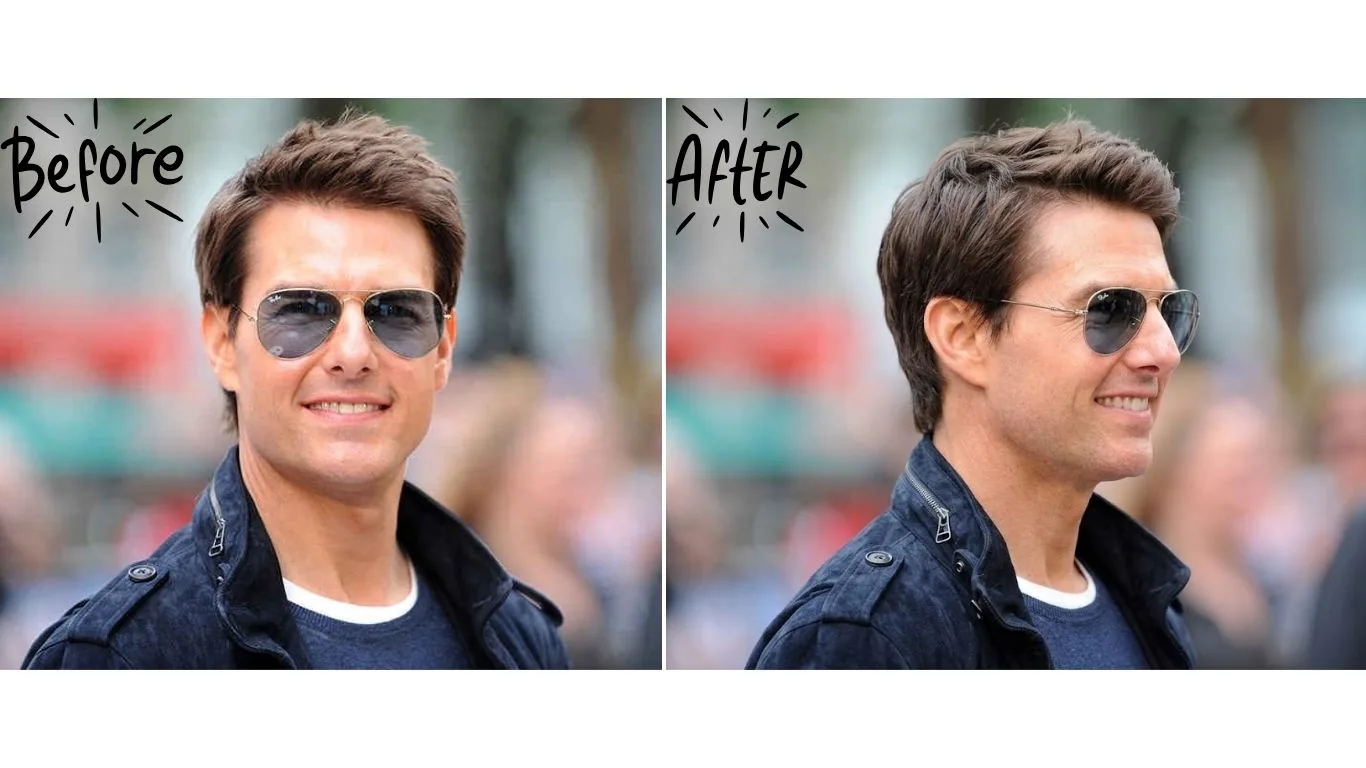
How to Create New Angles from Any Photo with Nano Banana Pro
If you want to get different angles of the same image in Nano Banana, the core idea is simple: upload the original photo, describe the new viewpoint clearly, and, when needed, guide the model with a crude camera diagram. That is the fastest way to turn one strong image into multiple believable camera angles for sports, portraits, products, and editorial visuals.
If you want more background on the model itself, see our Nano Banana 2 guide and our Nano Banana image generator article. If you need sharper exports after generating a new angle, you can also use our AI Image Upscaler.
Quick Answer
To change the camera angle in Nano Banana Pro, upload your original image, write a prompt that explains the new viewpoint, and optionally add a simple 2D or 3D camera diagram to guide the result. This works especially well for action photos, product shots, and dramatic hero images where you want a second angle that was never captured by the camera.
Table of Contents
I saw an amazing shot for Erling Haland as he delivered a cross into the box from the right wing. Photographers capture a breathtaking moment, his body parallel to the ground, eyes locked on the ball, muscles tensed. Then they get into the edit and realize the perfect angle, the one that would have shown the sheer height of his leap or the perspective from behind the goal, is the shot you did not take.
I remember staring at that Haland frame, knowing it was 90% spectacular but 10% flat. The angle just did not communicate how insanely high he was off the ground. I felt like the shot they got was only half the story.
Until recently, that was it. You lived with the shot you have. But with Google’s Nano Banana Pro, we can now remix the reality we captured. This guide is not about generating fantasy images from a prompt. It is about taking a real photograph, like that flying Haland shot, and using AI to create a completely new, physically convincing camera angle from it.
What Makes Nano Banana Pro Different?
To understand why this tool can convincingly rotate a high-speed action shot, you need to know what is under the hood. Nano Banana Pro is not just a diffusion model that guesses pixels. It is a multimodal large language model with a built-in world model.
Think about what happens in that Haland photo: he is airborne, his kit is rippling, there is a stadium background, and maybe motion blur. A standard AI might stretch and warp these elements when asked to change the angle, producing a melted mess. Nano Banana Pro, however, understands 3D space, gravity, and human anatomy. It knows that a body in flight occupies volume, and it uses that understanding to reconstruct the scene from a new viewpoint.
The Magic Workflow: Changing the Angle of a Flying Goal
Here is the exact process I followed with that single image of Haland scoring in mid-air. The workflow is surprisingly simple and can be replicated by anyone.
I uploaded the original shot and gave Nano Banana Pro a direct instruction. The prompt is the engine of this whole operation:
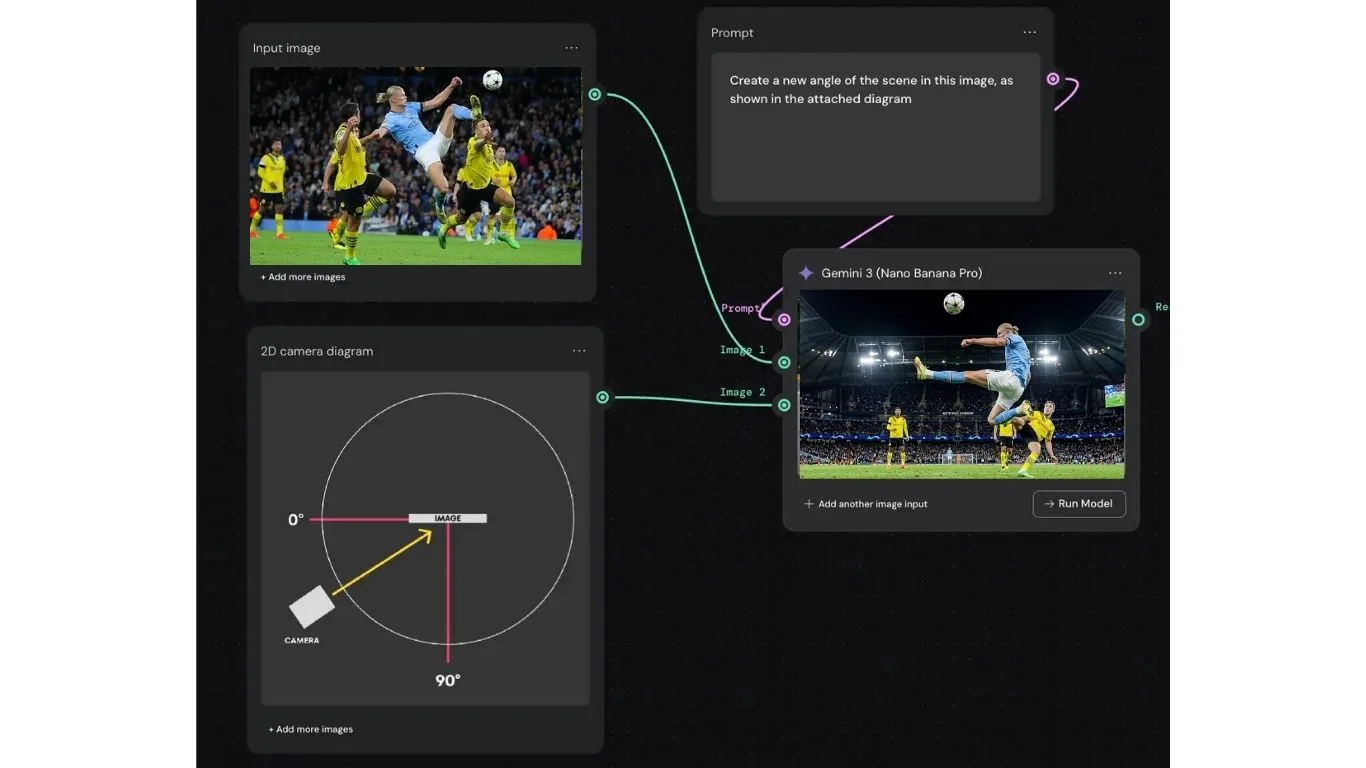
Prompt: “Create a new angle of the football player in image 1, like the entire scene is rotated 45 degrees to the left. Show the player still flying horizontally, about to strike the ball, but from a lower, more dramatic angle. Keep the same framing and stadium background.”
The results were staggering. Nano Banana Pro did not just tilt the image. It reconstructed Haland's body, the ball, and even the stadium seats from a perspective that was not originally there. The shadows fell correctly, and the texture of the grass looked like it was shot from that new, lower angle. It felt like I had a second, invisible photographer lying on the pitch right at the moment of impact.
How to Control the Camera Angle with Crude Diagrams
This is where the multimodal power became genuinely mind-blowing. I did not want to just try the 45-degree rotation. I wanted a top-down, bird’s-eye view of the Haland volley. So, I tested whether I could direct the camera with a drawing, not words.
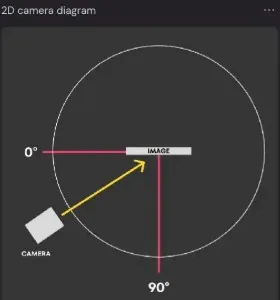
I uploaded a very simple 2D diagram. I drew a stick figure in a horizontal pose and a little arrow curving from an eye-level camera position to a position directly above the figure. Under it, I scribbled “top-down view of player striking ball.” And it worked. Nano Banana Pro understood the intent and gave me a convincing aerial view of the goalmouth action.
I am not a draftsman. My stick figure looked like a squashed bug, and my camera arrow was wobbly. But that is the beautiful part. The AI did not need perfection; it just got the idea. I felt less like a photo editor and more like a movie director sketching a storyboard.
This diagram method unlocks an unprecedented level of creative control. You are not just guessing with keywords; you are visually directing a virtual camera.
Where This Workflow Shines (Especially for Sports & Action)
Using the Haland shot as a test case highlighted the clear professional advantages:
- Anatomy & Kit Consistency: The model understood that Haland was wearing a specific Manchester City kit. The sponsor logos, the fabric wrinkles, and even the way the shorts creased at his hip were rendered correctly from the new angle because the AI understands 3D clothing on a moving body.
- 3D Spatial Awareness: Creating a top-down view of a player in mid-air is a complex geometry problem. Nano Banana Pro correctly computed the parallax of the goalposts and the position of the ball relative to his foot, resulting in a genuinely convincing image.
- Text Integrity: This is critical for commercial and editorial use. If there is text on an advertising board in the background or on a player’s jersey, Nano Banana Pro reads and writes it cleanly from new viewpoints better than many older image models.
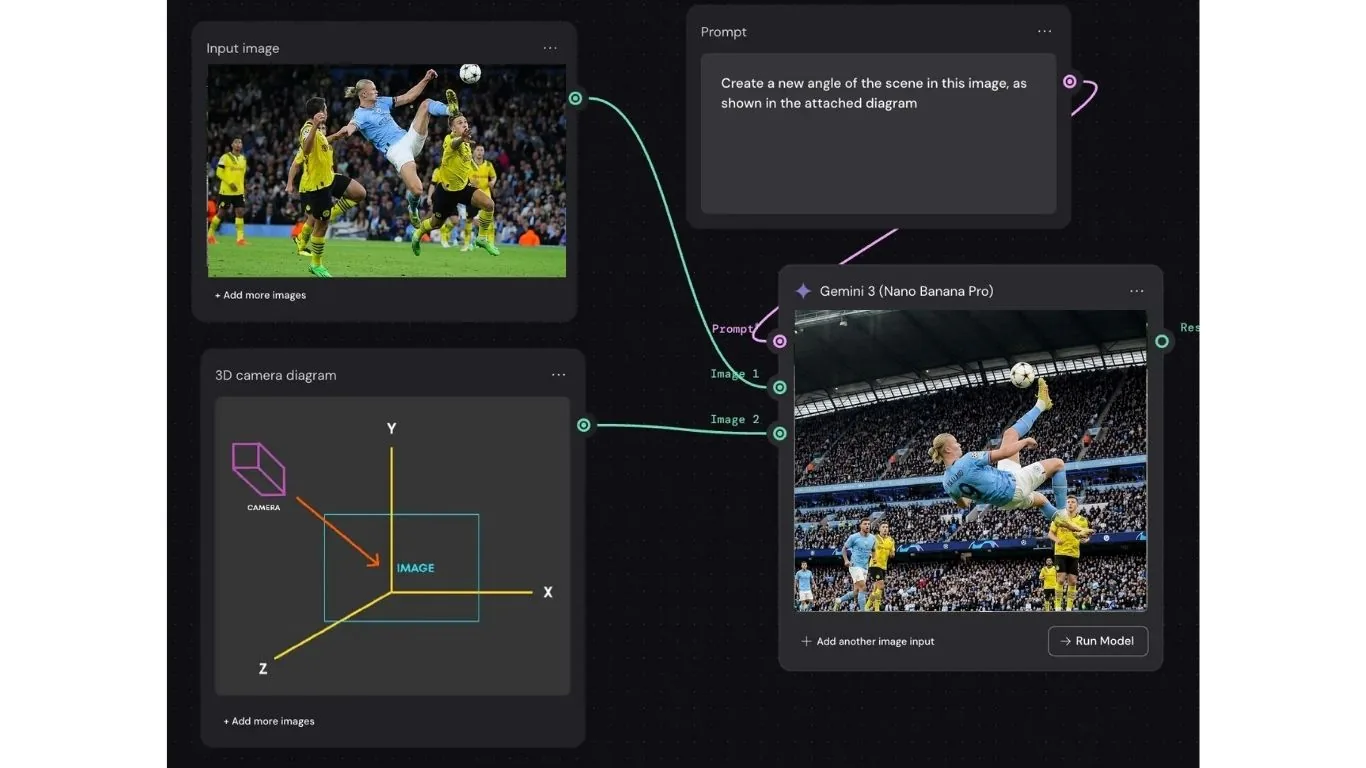
This is why Nano Banana camera angle prompts are useful beyond sports too. The same method can work for portraits, cars, products, architecture, and social media hero images when you need Nano Banana multiple angles from one source photo.
The Honest Truth: It Needs a Few Tries
I will not pretend it is a one-click miracle. With such a dynamic, fast-moving photo, I had to re-roll the generation a few times to get the pose exactly right. Sometimes the ball moved a few inches, or the second angle looked a bit too generated. But when it hits, which it did on the third try for that perfect low-angle shot, the result is indistinguishable from a photo taken by a different camera on the pitch. The patience is worth the massive leap in quality.
How to Access Nano Banana Pro for Your Own Shots
You have several ways to try this on your own action photos:
- Google Gemini App / Web: The simplest entry point. Upload your image, paste the prompt, and start experimenting through Gemini or the Gemini Apps help guide.
- Higgsfield AI: A more visual wrapper. Their Angles tool is built around spinning the virtual camera around an image.
- Weavy: A node-based workflow option for people who want deeper control. The product page at Weavy presents it as a visual platform for multi-model creative pipelines.
If you want a browser-based alternative for generation workflows, you can also explore our own AI Image Generator for adjacent creative use cases.
Final Takeaway: Do Not Let a Bad Angle Ruin a Perfect Moment
The difference with Nano Banana Pro is not just a neat trick. It is a new creative safety net. You no longer have to live with the shot you took if you can see an even better one hiding inside it. Rotating that Haland goal from a flat sideline photo into a powerful, low-angle hero shot transformed it from a good sports picture into a wall-worthy poster.
This technology lets you go back to the moment and re-photograph it from the angle you wish you had. For anyone who has ever missed the definitive shot by a few degrees, this is the closest thing to a time machine we have.
Frequently Asked Questions
How to get different angles of the same image in Nano Banana?
Upload the original image, describe the new viewpoint clearly, and generate variations until the geometry looks right. For better control, attach a simple camera diagram that shows where you want the virtual camera to move.
Can Nano Banana Pro edit pictures?
Yes. Nano Banana Pro can edit real images, not just generate from scratch. One of its strongest use cases is changing perspective, framing, or camera angle while keeping the original subject and scene structure believable.
How to change the camera angle in Nano Banana?
Use a prompt that specifies the exact direction of the new view, such as lower angle, top-down, 45 degrees left, or behind-the-subject. If the result is not precise enough, attach a 2D or 3D diagram to visually guide the camera rotation.
How do I change the angle of a photo with AI for free?
A common starting point is the Gemini app or Gemini web experience, where you can upload an image and test angle prompts. Availability, watermarks, model access, and limits can vary by plan and region, so free access is best treated as a testing route rather than a guaranteed production workflow.
What are good Nano Banana camera angle prompts?
Good prompts describe the subject, the new angle, and what must stay consistent. Example: create a new low-angle view of the subject from 45 degrees left, keep the same outfit, same background, same action, and realistic lighting.
Can Nano Banana Pro create multiple angles from one photo?
Yes. You can generate Nano Banana multiple angles by reusing the same source image with different prompts or diagrams. This is useful for hero shots, sports posters, thumbnails, editorial layouts, and storyboard-like concept exploration.