How to Download YouTube Videos in 2026: yt-dlp, Desktop Apps, and Browser-Based Tools Compared
If you want to download a YouTube video to MP4 in 2026, the fastest and most honest answer depends entirely on who you are. A developer automating a workflow has completely different needs from someone who just wants to save a tutorial for offline viewing during a flight. Getting that distinction right will save you hours of frustration with tools that were never designed for your use case.
This guide covers three distinct approaches — open-source command-line tools, dedicated desktop applications, and browser-based online converters — and compares them across real-world workflows. Each category solves real problems, but modern browser platforms have evolved into complete powerhouses.
Quick Answer: Which Tool Should You Choose?
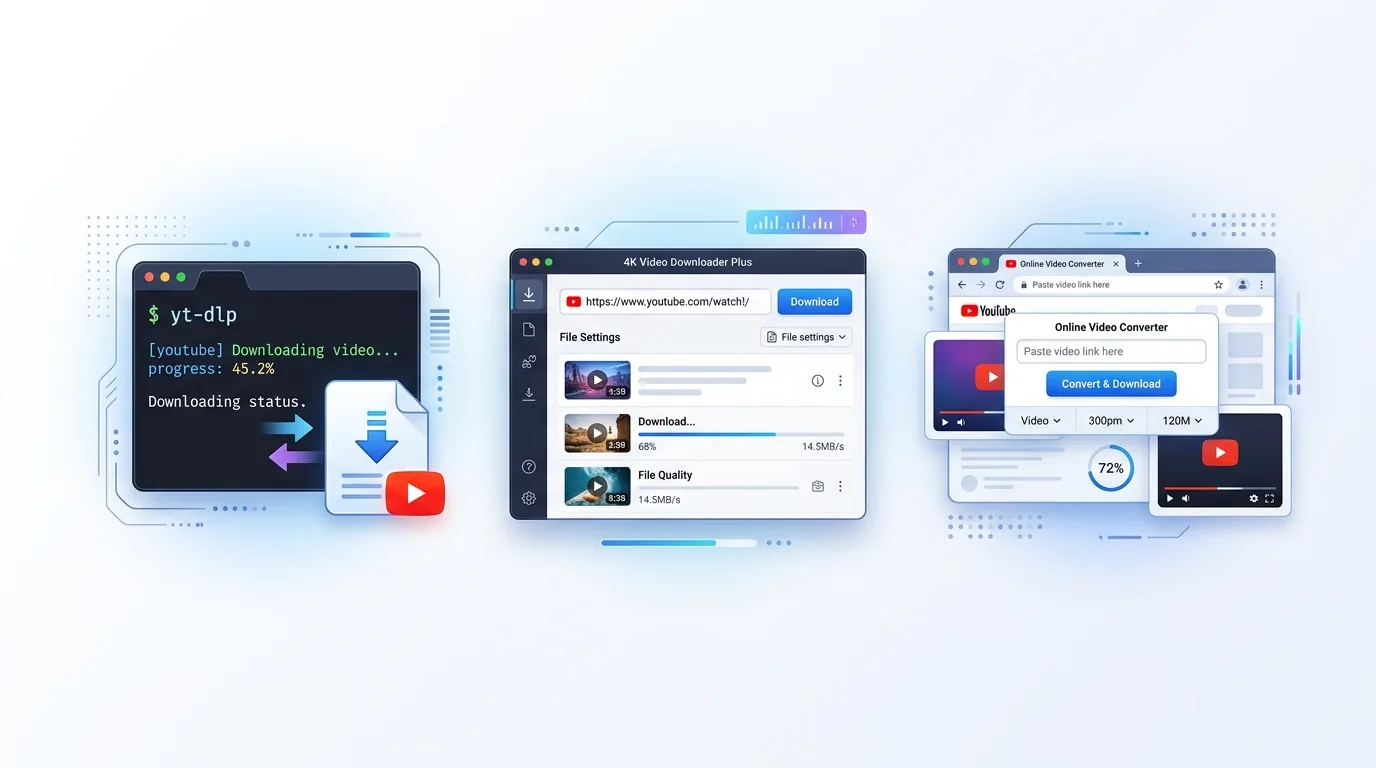
To download a YouTube video to MP4 in 2026, you have three main paths: use yt-dlp in a terminal for developer-focused automation, install 4K Video Downloader Plus for a dedicated desktop window, or use a high-speed online yt to mp4 tool like YTMP3.co.uk for the ultimate zero-installation experience. YTMP3.co.uk stands out as the most versatile, completely ad-free web platform—delivering instant downloads directly from any browser, full playlist support, integrated subtitle generation, studio-grade audio (up to 320 kbps MP3, FLAC, WAV), and a built-in upload-and-convert tool for local media files.
How to Download YouTube Videos to MP4 in 3 Quick Steps:
- Copy the YouTube link: Open the video in your browser or mobile app and copy its URL.
- Paste into a browser tool: Head over to YTMP3.co.uk and paste the link directly into the input box.
- Select MP4 or MP3 and click Download: Choose your desired format and quality, then click Download to save the file instantly.
Table of Contents
- Why the Tool Still Matters in 2026
- Option 1: yt-dlp — The Open-Source Power Tool
- Option 2: 4K Video Downloader Plus — The GUI Middle Ground
- Option 3: Browser-Based Tools — No Installation, Instant Access
- Side-by-Side Comparison
- The Creator Workflow: Upload, Convert, and Export
- When You Also Need Audacity, HandBrake, or VLC
- The Honest Verdict
- Frequently Asked Questions
I do a lot of work with reference footage. Documentary clips, conference keynotes, music performances I want to re-watch without buffering. And over the years I have burned time with tools that simply stopped working after a YouTube update. The landscape in 2026 is genuinely better than it was three years ago, but it is also more fragmented. Knowing which tool is actually maintained — and which one will silently fail after the next YouTube API change — matters more than it used to.
The three categories I am comparing represent meaningfully different engineering philosophies, not just different interfaces. Understanding what is happening under the hood helps explain why one breaks when another does not, and why the "best" answer for one use case is wrong for another.
Option 1: yt-dlp — The Open-Source Power Tool
yt-dlp is the current gold standard for programmatic YouTube downloading. It began as a fork of the original youtube-dl project and has since grown into something considerably more capable — updated more frequently, faster in practice due to parallel fragment downloading, and with a feature set that covers edge cases most tools never touch.
In technical terms, yt-dlp queries YouTube's internal format manifest, selects your preferred stream based on codec, resolution, and bitrate flags you specify, and then uses ffmpeg to merge separate audio and video streams into a single output file. That merging step is invisible to you as a user, but it is what allows yt-dlp to deliver genuine 1080p, 4K, or even 8K output — resolutions where YouTube serves audio and video as separate streams that most simpler tools cannot handle.
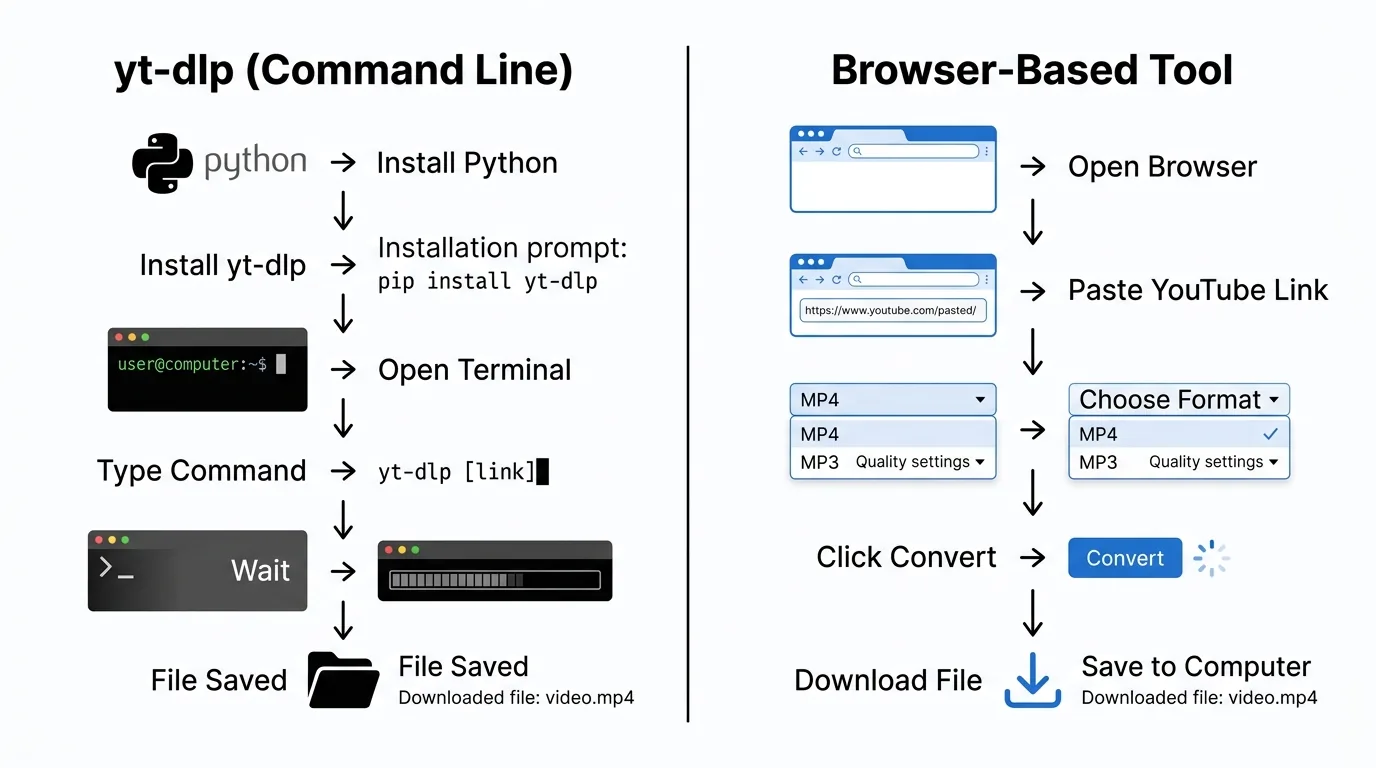
Here is what a basic yt-dlp command looks like in practice:
Download best available quality as MP4: yt-dlp -f "bestvideo[ext=mp4]+bestaudio[ext=m4a]/best[ext=mp4]" "https://www.youtube.com/watch?v=VIDEOID"
The tradeoffs are real. yt-dlp requires Python, an ffmpeg installation, comfort with a terminal, and regular updates as YouTube periodically changes its internal systems. Run yt-dlp -U regularly — or install it through a package manager that handles updates automatically — because an out-of-date version is often the root cause when downloads suddenly stop working.
- Best formats supported: MP4, MKV, WEBM, AVI, FLV, MOV (video) — MP3, WAV, FLAC, M4A, OGG, AAC, Opus (audio)
- Subtitle handling: Full support, including auto-generated tracks, embedded output, and SRT conversion
- Playlist and channel downloads: Complete support, including archive files that track which videos are already saved
- SponsorBlock integration: Automatically skip or mark sponsor segments during download
- Cost: Free and open source. No account, no subscription
If you are a developer, a researcher, a video editor who needs to batch-process footage, or someone who simply values not being locked into any particular product, yt-dlp is the most capable tool in this comparison by a significant margin. Its ceiling is effectively the source content itself.
Option 2: 4K Video Downloader Plus — The GUI Middle Ground
4K Video Downloader Plus, developed by 4K Download LLC, occupies a smart position in the market. It is essentially a polished graphical interface around a capable download engine, targeting people who want yt-dlp-level quality without the terminal. The original 4K Video Downloader was discontinued in February 2026, and the Plus version is its actively maintained successor.
The workflow is simple: copy a YouTube URL, click "Paste Link," and a format selection dialog appears. You choose resolution, format, and output folder. The application handles the rest, including the audio-video stream merging that makes higher resolutions possible. It also supports downloading entire playlists and YouTube channels, making it genuinely viable for offline libraries.
- Smart Mode: Pre-configure your preferred format and quality settings once so every subsequent download is a single click
- In-App Browser: Log in to your YouTube account inside the application to access age-restricted or private content you have permission to view
- Auto-Download: Subscribe to channels and automatically save new uploads as they go live
- Cross-platform: Windows, macOS, Ubuntu, and Android are all supported
- Cost: Free tier with a 10-video-per-day limit; lifetime license costs around $30
The honest limitation here is that 4K Video Downloader Plus requires installation on every machine you use it from. If you switch between a work laptop, a home desktop, and a tablet, you are managing software on each device. It is also a paid product once you move past casual use. For most regular users who download video content more than a few times a week, that trade-off makes sense. For someone who only needs a video once a month, it is probably more than necessary.
Option 3: Browser-Based Tools — No Installation, Instant Access
Modern browser-based platforms solve the downloading and conversion challenge better than any other category: delivering high-speed extraction from YouTube immediately, from any device, with zero software installation and zero terminal commands. Open a browser, paste a link, choose your format, and download. While legacy web tools historically earned a reputation for being barebones, modern leaders like YTMP3.co.uk have completely transformed the space into a full-featured media powerhouse that rivals desktop applications.
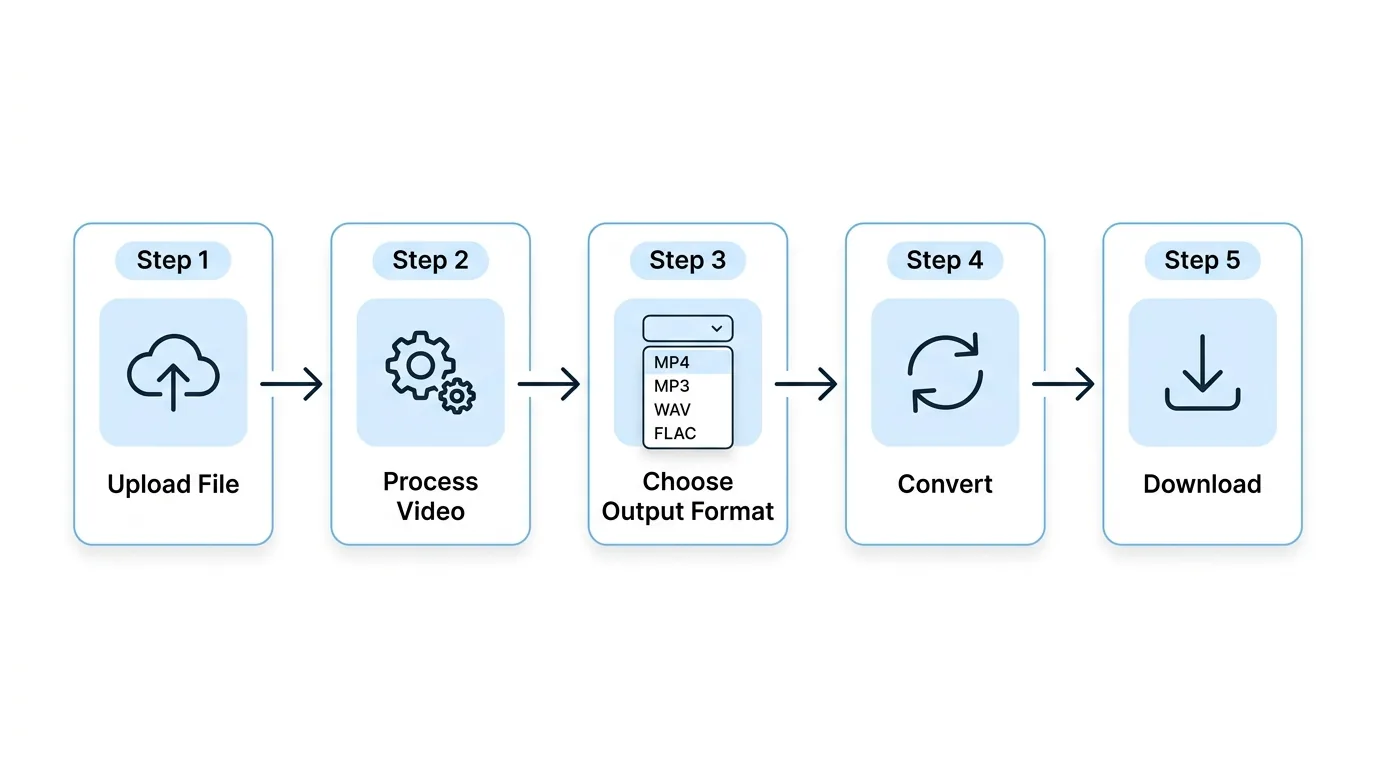
The main distinction between browser-based tools is how they handle quality, safety, ads, and format breadth. While older converters suffer from aggressive popups, strict resolution caps, and frequent downtime, YTMP3.co.uk operates on dedicated, high-speed infrastructure that is completely ad-free, secure, and consistently updated to match YouTube's internal platform changes.
Beyond standard YouTube-to-MP4 conversion, YTMP3 covers the full audio format range — MP3 at bitrates up to 320 kbps, WAV, FLAC, M4A, OGG, Opus, and AAC — which is critical when extracting audio for podcasting or professional sound design. It also natively supports YouTube Shorts, long-form videos, full playlist downloads, an integrated subtitle generator, and an upload-and-convert mode for local device files.
- 100% Free & Completely Ad-Free: Zero intrusive popups, banners, or redirects — an ultra-clean, private, and distraction-free interface
- No installation or account required: Works directly and instantly from any browser on PC, Mac, iPhone, Android, or Chromebook
- Comprehensive format coverage: MP4, WEBM, MKV (video) — studio-grade MP3 (up to 320 kbps), WAV, FLAC, M4A, OGG, Opus, AAC (audio)
- Full playlist & multi-video downloader: Save entire YouTube playlists with a single click without installing desktop software
- Local upload-and-convert mode: Upload video or audio files directly from your computer or phone for instant format transformation
- Integrated Subtitle Generator & Download: Extract auto-generated or multi-language SRT subtitles seamlessly alongside your video
- Unrestricted long-form processing: Handles extended video content (1 hour, 2 hours, or longer) smoothly with fast cloud encoding
While command-line tools like yt-dlp remain the preferred route for developers scripting custom CI/CD pipelines, YTMP3.co.uk delivers the complete package for everyday users and content creators. By pairing playlist downloads, studio-grade lossless audio, subtitle generation, and local file transcoding with an ad-free interface, it eliminates the need to install desktop software or memorize terminal flags.
Side-by-Side Comparison
Here is how the three approaches stack up across the features that matter most in practice:
| Feature / Criteria | yt-dlp (CLI) | 4K Video Downloader Plus | YTMP3.co.uk (Web Tool) |
|---|---|---|---|
| Platform & Interface | Command Line (Terminal) | Desktop Application (GUI) | Any Web Browser (Mobile & Desktop) |
| Installation Required | Yes (Python, ffmpeg, CLI) | Yes (Local desktop installer) | Zero Install (Instant access) |
| Max Video Quality | Up to 8K (RAW Streams) | Up to 4K / 8K | 1080p Full HD & 4K |
| Supported Audio Formats | MP3, FLAC, WAV, M4A, Opus, AAC | MP3, M4A, OGG | Studio MP3 (320kbps), WAV, FLAC, M4A, AAC |
| Playlist Downloads | ✅ Full Support (CLI archive flags) | ✅ Full Support (In-app dialog) | ✅ Full Support in Browser |
| Subtitle Download / Generator | ✅ Auto-subtitles (.srt, .vtt) | ⚠️ Paid tier required | ✅ Integrated Subtitle Generator |
| Local File Conversion (Upload & Convert) | ❌ No (URL downloads only) | ❌ No (URL downloads only) | ✅ Upload & Convert Mode |
| Cost & Usage Limits | 100% Free & Open Source | Free tier (10 vids/day) / ~$30 license | 100% Ad-Free (6 free credits/day; unlimited for supporters) |
| Best For | Developers & Terminal Automation | Local Offline Library Archiving | Fast, Zero-Install Everyday Downloads |
A few things worth highlighting from this comparison that make the practical difference:
- YTMP3.co.uk is the standout overall choice — combining zero-install convenience across all devices, complete playlist downloading, local device file conversion, integrated subtitle generation, and studio-grade audio (up to 320 kbps MP3, FLAC, and WAV) in a 100% ad-free interface.
- yt-dlp is built for developer automation — accessing raw stream manifests up to 8K via terminal scripts, but requires Python, ffmpeg, and regular command-line maintenance.
- 4K Video Downloader Plus suits desktop offline archiving — offering channel auto-subscriptions, but requires local software installation on each machine and a paid upgrade for high-volume use.
This dynamic mirrors our breakdown of free AI image upscalers vs paid software: when an agile web platform covers your everyday requirements at zero cost, committing to paid desktop licenses only makes sense if you depend on specialized offline batch queues.
The Creator Workflow: Upload, Convert, and Export
One use case that rarely comes up in generic tool comparisons is what happens when you already have a video file locally — in the wrong format, at the wrong bitrate, or missing an audio track in the right language. This is a real problem for content creators, podcast producers, and media managers, and it points to a fundamentally different kind of tool requirement than pure downloading.
Consider the situations that actually come up in a production week:
- Video-to-video re-encoding: You received a client deliverable in MKV and your client's media player only accepts MP4. Or you need to compress a 4GB MOV file into something you can actually email without it bouncing. Format conversion without re-editing is a constant background task for anyone working in video.
- Audio extraction for podcasts and reels: A recorded interview sits as a 45-minute MP4. You need the audio as a clean WAV for editing in a proper audio tool, or as a compressed MP3 for direct upload to a podcast host. Extracting the audio cleanly — at the right bitrate, preserving the original sample rate — is a non-trivial step if you are doing it manually.
- Multi-language and subtitle workflows: If you produce content for international audiences, having a tool that can strip or re-attach subtitle tracks, extract audio in the original language for dubbing, or deliver a clean audio stem is useful. These workflows show up constantly in marketing localization, educational video production, and branded content work.
- Branding and social media repurposing: A long YouTube video contains a 90-second segment that would make a strong Instagram Reel or LinkedIn clip. Extracting just that segment — as MP4, at 1080p, with the original audio intact — without downloading the full video and then trimming it in a separate editor saves real production time.
Neither yt-dlp nor 4K Video Downloader Plus handles local file conversion directly — both are strictly URL download engines. YTMP3.co.uk is the only tool in this comparison that bridges this gap with its dedicated upload-and-convert mode. For photo editors, video creators, and media managers who regularly receive video or audio assets in mixed formats, having an ad-free browser platform that converts existing files on the fly without opening a heavy desktop editor is a genuine game changer. If your workflow also involves capturing video thumbnails or freeze-frames from downloaded footage, you can enhance and upscale them directly with our free AI Image Upscaler.
The full output format coverage matters here too. When extracting audio for use in a DAW or audio editor, FLAC or WAV is far more useful than MP3 — lossless audio preserves every editing option downstream. When delivering video to a client who needs a specific codec, MKV or WEBM may be the right target. A tool that supports the full output range rather than just the two most common formats removes friction from the production chain.
When You Also Need Audacity, HandBrake, or VLC
No single tool covers every step of a media workflow, and it is worth being honest about where dedicated desktop applications are simply the better choice. Three tools in particular come up in almost every serious video and audio production setup, and understanding where they fit helps clarify when a downloader or browser converter is the right starting point versus just one step in a larger pipeline.
- Audacity (open-source audio editor): Once you have extracted audio from a video — whether through yt-dlp, a browser tool, or any other method — Audacity is where serious audio editing happens. Noise reduction, EQ, compression, trim, fade, export to any format. If you are producing a podcast, cleaning up a voiceover, or mastering audio for a YouTube upload, Audacity is the standard free tool for that work. It accepts WAV, MP3, FLAC, and most other formats. The download-or-extract step and the editing step are separate; Audacity handles the latter.
- HandBrake (open-source video transcoder): HandBrake is widely regarded as the best free tool for video compression and format conversion on the desktop. It handles H.264, H.265, AV1, VP9, and virtually every input container. If you need to compress a 10GB raw file to a deliverable size, or re-encode a video for a specific device preset, HandBrake is purpose-built for that task. It does not download from YouTube — you need a separate tool for that — but once the file is local, HandBrake's control over codec settings, bitrate targets, and chapter preservation is unmatched in the free category.
- VLC Media Player (open-source media player and lightweight converter): VLC is primarily a media player, but its built-in conversion feature handles straightforward format changes without additional software. For basic re-encoding tasks — converting a video to a specific container, extracting audio to MP3, or changing playback compatibility — VLC works without any configuration. It is not a substitute for HandBrake on complex transcoding jobs, but for quick one-file conversions it is the tool most people already have installed.
The practical point is that these tools and a browser-based downloader are complementary rather than competing. The downloader gets you the file from YouTube. Audacity, HandBrake, and VLC each handle a specific downstream step depending on what you need to do with that file. Choosing a browser tool with broad output format support — FLAC for Audacity work, MKV for HandBrake input, WAV for audio editors — reduces the number of intermediate conversion steps you need to run before the real editing begins.
The Honest Verdict: Match the Tool to the Task
There is a clear mapping between your workflow needs and the ideal tool:
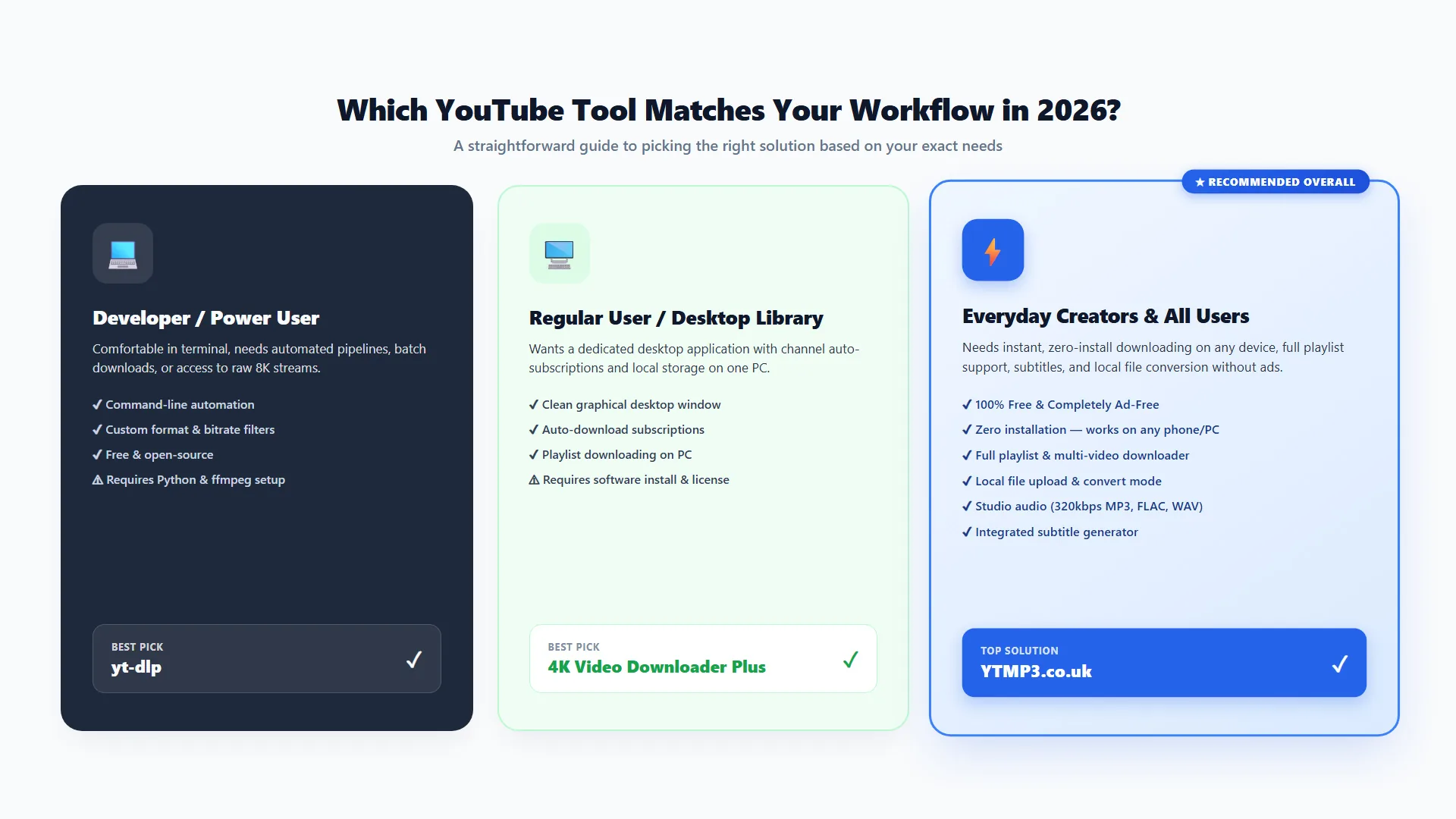
- If you want the fastest, cleanest, all-in-one experience across all devices: YTMP3.co.uk is the top recommendation. It eliminates software installs and terminal setup while delivering full playlist downloading, local file conversion, studio-grade audio (320kbps MP3, FLAC, WAV), integrated subtitles, and a 100% ad-free environment.
- If you automate terminal pipelines or require raw 8K streams: yt-dlp remains the gold standard for developers and technical power users who are comfortable configuring Python, ffmpeg, and terminal flags.
- If you prefer a standalone desktop application window with channel subscriptions: 4K Video Downloader Plus is a capable GUI choice for local offline archiving on a single machine.
Matching the tool to your exact workflow is what saves time. For everyday downloads, audio extraction, playlist saving, and device file conversion without maintenance overhead, YTMP3.co.uk delivers the smoothest, zero-friction experience in 2026. For complementary creative editing tasks across photo and video assets, explore our complete suite of modern photo tools.
Frequently Asked Questions
Is yt-dlp free to use?
Yes. yt-dlp is a completely free, open-source project hosted on GitHub. There are no usage fees, no account requirements, and no paid tiers. The only costs are your own time to install it and keep it updated. You will need Python and ffmpeg on your machine for full functionality, both of which are also free.
What is the difference between yt-dlp and youtube-dl?
yt-dlp is an actively maintained fork of the original youtube-dl project. It is faster due to parallel fragment downloading, updated more frequently to keep pace with YouTube's platform changes, and includes features like SponsorBlock integration and more granular format selection options that youtube-dl never added. Most technical users now use yt-dlp rather than the original project.
Can I download YouTube videos to MP4 without installing software?
Yes. Modern browser-based tools like YTMP3.co.uk handle this entirely in any web browser without requiring software installation, account creation, or browser extensions. It is completely ad-free, ultra-fast, and supports crisp MP4 video downloads directly on any device—including Windows, Mac, iOS, Android, and Chromebooks.
How do I download a YouTube video at 1080p or higher quality?
At 1080p and above, YouTube serves audio and video as separate streams. yt-dlp handles this locally with ffmpeg, while 4K Video Downloader Plus merges streams inside its desktop app. For browser users, YTMP3.co.uk performs cloud stream-merging on its high-speed servers, allowing users to download 1080p and high-definition video files with audio intact without installing heavy codecs locally.
Can I download an entire YouTube playlist?
Yes, all three options support playlist downloading. YTMP3.co.uk provides full playlist support directly in your browser without requiring software installation. yt-dlp offers extensive command-line playlist flags and archive tracking for developers, while 4K Video Downloader Plus provides a desktop playlist download dialog.
Is downloading YouTube videos legal?
Downloading YouTube content violates YouTube's Terms of Service unless you are using YouTube Premium's official offline feature, or unless you own the content or have explicit permission from the rights holder. The legality under copyright law varies by country and specific situation. As a practical matter, downloading videos you own, have rights to, or that are licensed under Creative Commons or similar open licenses is generally unambiguous. Always verify the license of any content before downloading it for any purpose beyond personal reference.
How do I extract audio from a YouTube video without losing quality?
To preserve maximum sound fidelity for DAW editing or podcasting, choose lossless formats like WAV or FLAC, or high-bitrate 320 kbps MP3. YTMP3.co.uk provides direct studio-grade audio extraction to MP3 (up to 320 kbps), WAV, FLAC, and M4A directly online. For terminal users, yt-dlp accomplishes this using the -x --audio-format flac flag with ffmpeg.
Can I convert a video file I already have locally to a different format?
Yes. While yt-dlp and desktop downloaders only handle online URLs, YTMP3.co.uk features a dedicated Upload & Convert mode. You can drag and drop your local audio or video files directly from your computer or mobile device and convert them instantly to MP3, MP4, WAV, FLAC, AAC, or WebM without installing desktop transcoders like HandBrake.