How to Remove People from Photos Without Photoshop: Step-by-Step Guide
Table of Contents
- Quick Summary
- Why Removing People from Photos Is Hard Without the Right Tool
- The Two Methods: Cleanup vs. Replace
- Step-by-Step: AI Cleanup Method
- Step-by-Step: AI Replace Method
- Practical Example: Tourist Landmark Photo
- Common Use Cases
- Pro Tips for Best Results
- Common Mistakes to Avoid
- Frequently Asked Questions
- The Future of AI Photo Cleanup
Quick Summary
The short answer: You need two things — a photo and a browser. Upload to the AI Cleanup Tool, brush over the person you want removed, click Remove, and download. The AI reconstructs the background automatically. For more control — replacing a person with a tree, furniture, or extended background — use the AI Replace Tool instead. No Photoshop, no layers, no technical knowledge required. Both methods are covered step by step below.
Why Removing People from Photos Is Hard Without the Right Tool
The core challenge in removing a person from a photo is not the deletion — it is what happens to the space they occupied. Every pixel the person covered needs to be replaced with something that matches the surrounding background in texture, color, lighting, and pattern. Done manually in Photoshop, that means selecting, cloning, patching, and blending — a process that can take 20–60 minutes per person and requires experience to produce results that do not look edited.
Three specific scenarios make this especially difficult without Photoshop skills:
Scenarios That Make Manual Removal Hard
- Crowded backgrounds — when the person overlaps with other subjects, every edge requires precise masking to avoid cutting into the wrong element
- Complex textures behind the subject — cobblestone, water, foliage, and patterned architecture cannot be reconstructed by simple cloning without visible repetition artifacts
- Multiple people — each person removed exposes the area behind them, which may require its own reconstruction based on what was visible in adjacent frames
What AI Solves
- Analyzes the entire image to understand texture, lighting, and background patterns before filling
- Generates a plausible reconstruction of the covered area rather than copying from a nearby patch
- Handles edge detection automatically — no manual masking required
- Produces results in 2–5 seconds that would take an experienced Photoshop user 15–40 minutes
The Two Methods: Cleanup vs. Replace
Modern Photo Tools provides two separate AI tools for removing people from photos. They solve different problems and the right choice depends on what you want the final image to look like.
| Factor | AI Cleanup | AI Replace |
|---|---|---|
| What it does | Removes the person and fills the space with a natural background reconstruction | Removes the person and substitutes the area with a new element you specify |
| Output | Clean, empty background — person is gone | New element in the person's place — tree, object, extended scene, etc. |
| Input required | Brush selection over the person | Brush selection + text description of the replacement |
| Best for | Travel photos, real estate, event photography, any case where empty space is the goal | Creative edits, composition improvement, adding landscape elements, filling compositional gaps |
| Processing time | 2–5 seconds | 5–15 seconds depending on replacement complexity |
AI Cleanup Tool
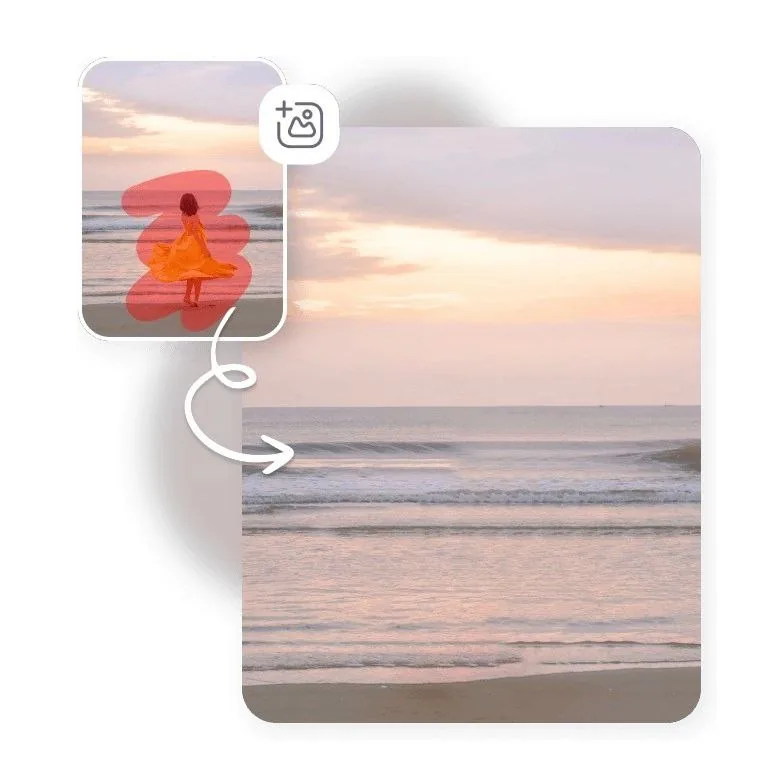
Removes unwanted people and objects while the AI reconstructs the background naturally — matching surrounding texture, pattern, and lighting.
AI Replace Tool
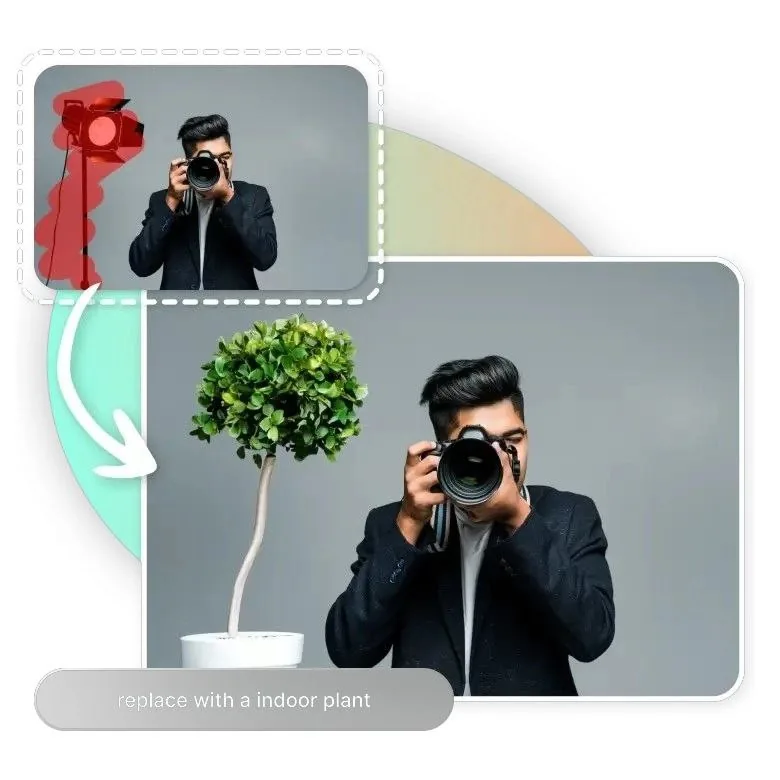
Removes a person and fills the area with a new element of your choice — described in plain text. Useful when simple removal leaves a compositional gap.
Step-by-Step: AI Cleanup Method

Use this method when you want to remove a person and leave clean, empty background in their place.
- Upload your photo. Go to the AI Cleanup Tool and upload the image. Supported formats include JPEG and PNG. There is no account required to start.
- Select the brush size. Choose a brush size appropriate to the person you are removing. Larger brush for a full-body figure in an open background; smaller brush for precise work near other subjects or complex edges.
- Paint over the person. Brush over the entire area occupied by the person — include their full outline, shadow if visible on the ground, and any reflections. Coverage does not need to be pixel-perfect at the edges; the AI uses the brush area as a guide and refines the selection automatically.
- Click Remove. The AI analyzes the surrounding image, reconstructs the background behind the selected area, and fills it within 2–5 seconds.
- Review the result. Zoom in to check edges and the fill quality. If a specific area looks unnatural, use the brush to select just that section and remove again — the AI will generate a different reconstruction for that patch.
- Download in high resolution. Export the final image. The output maintains the original resolution of the source file.
Remove People from Your Photos Now
No Photoshop. No technical skills. Upload and remove in under 30 seconds.
Try AI Cleanup FreeStep-by-Step: AI Replace Method

Use this method when removing a person leaves a compositional gap, or when you want to actively improve the photo by substituting the person with something that enhances the scene.
- Upload your photo. Go to the AI Replace Tool and upload the image.
- Paint over the person to replace. Use the brush to select the area occupied by the person, including their shadow and any ground contact area.
- Describe the replacement element. In the text field, describe what you want in that space. Be specific: "a large oak tree with full summer foliage" produces a more accurate result than "a tree." Consider the lighting and perspective of your original photo when writing the description.
- Click Replace. The AI removes the person and generates the specified replacement element, matching the lighting direction, color temperature, and perspective of the surrounding scene.
- Review and iterate. If the first result does not match what you intended, refine your text description and regenerate. Specifying scale, style, and lighting direction in the description produces more consistent results.
- Download the final image. Export at full resolution.
Effective Replacement Descriptions
| Scenario | Weak Description | Specific Description |
|---|---|---|
| Garden photo | "a plant" | "a tall ornamental grass cluster with soft sunlight from the right" |
| Beach photo | "ocean waves" | "calm shallow waves with wet sand reflection, matching the existing midday lighting" |
| City street | "a bench" | "a wooden park bench facing forward, casting a short shadow consistent with overhead afternoon light" |
| Interior room | "furniture" | "a mid-century armchair in muted grey fabric, consistent with the existing room lighting and floor perspective" |
Replace People with Something Better
Remove and replace in one step — describe the element, and the AI generates it in context.
Try AI Replace FreePractical Example: Tourist Landmark Photo
This is a common scenario: a travel photo of a historic building or landmark taken during peak hours, with tourists visible throughout the frame. The goal is a clean architectural shot with no people visible.

The Approach
With multiple people scattered across a cobblestone plaza in front of an architectural subject, the AI Cleanup method is the right choice. The background behind each person is a consistent stone texture — exactly the type of surface that the AI reconstructs most accurately.
Workflow applied:
- Upload the photo to AI Cleanup
- Start with the people closest to the edges of the frame — these are the simplest removals with the most surrounding context for reconstruction
- Work inward, removing people in groups of two or three rather than all at once
- On the final pass, address any figures in the center foreground where the cobblestone reconstruction needs to be most precise
- Review at 100% zoom — check for any repeated texture patterns or edge artifacts at the base of each removed figure
- Export at original resolution
Total time: Under 3 minutes for a photo with 8–10 visible people. The equivalent manual process in Photoshop with clone stamp and content-aware fill would take 45–90 minutes for a photographer with intermediate skills.
Common Use Cases
Travel Photography

Remove tourists from landmark and architectural photos to produce clean, magazine-quality travel images — without requiring a pre-dawn shoot or multiple-exposure stacking.
Method: AI Cleanup
Real Estate Photography

Remove occupants, visitors, or agents who appeared in listing photos during the shoot. Produces clean, depersonalized property images ready for MLS upload.
Method: AI Cleanup
Event Photography

Remove photobombers from wedding, corporate, or event photos. Also useful for compositing — combining the best elements from two frames of the same scene.
Method: AI Cleanup or AI Replace depending on what is needed in the gap
Start Cleaning Up Your Photos
Both tools are free to start. No account, no software installation.
Pro Tips for Best Results
For Removal (AI Cleanup)
- Include the shadow. Brush over the person's ground shadow as well as their body — leaving an isolated shadow after removal immediately looks unnatural
- Work from edges inward. Remove people near the frame edges first, where surrounding context is clearest, then move to the center
- Remove in batches. For crowds, remove 2–3 people per pass rather than all at once — the AI has more intact background context to work with for each removal
- Re-run specific patches. If one area of the reconstruction looks off, select only that patch and remove again — the AI generates a different fill each time
- Zoom to 100% before exporting. Artifacts that are invisible at fit-to-screen view can be visible on a large display or when cropping tightly
For Replacement (AI Replace)
- Specify light direction. Include the lighting conditions from the original photo in your description — "soft light from the left" or "overhead midday sun" — so the replacement element matches the scene
- Match the perspective. Describe the viewing angle if relevant: "viewed from slightly below, consistent with a wide-angle ground-level shot"
- Size and scale matter. Add scale context: "a bench approximately 1.5 meters wide" rather than just "a bench"
- Iterate on the description. If the first result is off, adjust one element of the description at a time rather than rewriting it entirely
- Use Cleanup first for crowds, Replace for isolated subjects. When multiple people need to be removed, clean the crowd first, then use Replace on any specific spot that needs a compositional element
Common Mistakes to Avoid
✓ What Works
- Including the full shadow in the brush selection
- Removing people in small groups from crowded photos
- Working from frame edges inward
- Zooming to 100% to review reconstruction quality before exporting
- Providing specific, lighting-aware descriptions for Replace
- Re-running specific patches rather than the entire image when one area needs improvement
✗ Common Errors
- Brushing only the body and leaving the shadow — isolated shadows look immediately unnatural
- Selecting all people in a crowded photo at once — reduces the AI's background context for each fill
- Using vague replacement descriptions — "something natural" produces unpredictable results
- Exporting without zooming in — small artifacts at 100% view are visible when the image is cropped or displayed large
- Using AI Replace when simple Cleanup would do — the replacement adds complexity when the goal is just a clean background
- Selecting people whose bodies overlap significantly with the main subject — this requires more careful brushwork to avoid clipping the subject's edge
Frequently Asked Questions
Will the background look natural after removing people?
Yes in most cases. The AI Cleanup Tool analyzes surrounding textures, patterns, and lighting to reconstruct the background plausibly. Results are typically seamless for natural backgrounds — stone, grass, sand, water, plain walls, and architecture. Highly irregular or pattern-dense backgrounds (complex tile, mosaic, or heavily patterned textiles) may occasionally produce minor inconsistencies that can be corrected by re-running the specific patch.
Do I need any technical skills to use these tools?
No. Both tools use a brush-select interface — paint over the person, click the action button, review the result. The AI handles edge detection, background analysis, and fill generation automatically. The entire process takes under a minute for most photos and requires no prior photo editing experience.
What is the difference between AI Cleanup and AI Replace?
AI Cleanup removes the person and reconstructs the background as if they were never there. AI Replace removes the person and substitutes the area with a new element you describe in text — a tree, a piece of furniture, an architectural feature, or extended background. Use Cleanup when you want clean empty space. Use Replace when removing a person would leave a compositional gap that needs to be filled with something specific.
What types of photos work best with these tools?
Best results come from photos where the person to remove does not overlap significantly with the main subject, the background behind them has consistent or repeating texture, lighting is reasonably even across the frame, and the source file has good resolution. The AI handles complex backgrounds too — but uniform backgrounds produce the most seamless reconstructions.
Is there a limit to how many people I can remove?
No technical limit. For photos with many people, remove in batches of two or three rather than selecting everyone at once. Sequential removal gives the AI more intact surrounding context for each fill operation and produces more accurate background reconstruction throughout the image.
The Future of AI Photo Cleanup
Removing people from photos without Photoshop is already fast, accessible, and produces results that most users cannot distinguish from manually edited images. The two-tool approach covered in this guide — Cleanup for straightforward removal, Replace for compositional substitution — handles the full range of scenarios that photographers, agents, and content creators encounter regularly.
The direction this technology is heading is toward real-time cleanup: tools that identify and remove transient people automatically as part of the capture or upload process, without requiring any manual brush selection at all. Early implementations already exist in smartphone camera apps for single-subject scenes. The challenge for more complex multi-person, multi-texture images — the exact scenarios where manual Photoshop work is hardest — is where dedicated AI tools like these continue to improve most rapidly.
For practical purposes today: if a photo has a person who should not be in it, the Photoshop-free path is faster, requires no learning curve, and in most cases produces results that are indistinguishable from the manual alternative.
Clean Up Your Photos Now
Both tools are free to start. No account, no installation, no Photoshop.