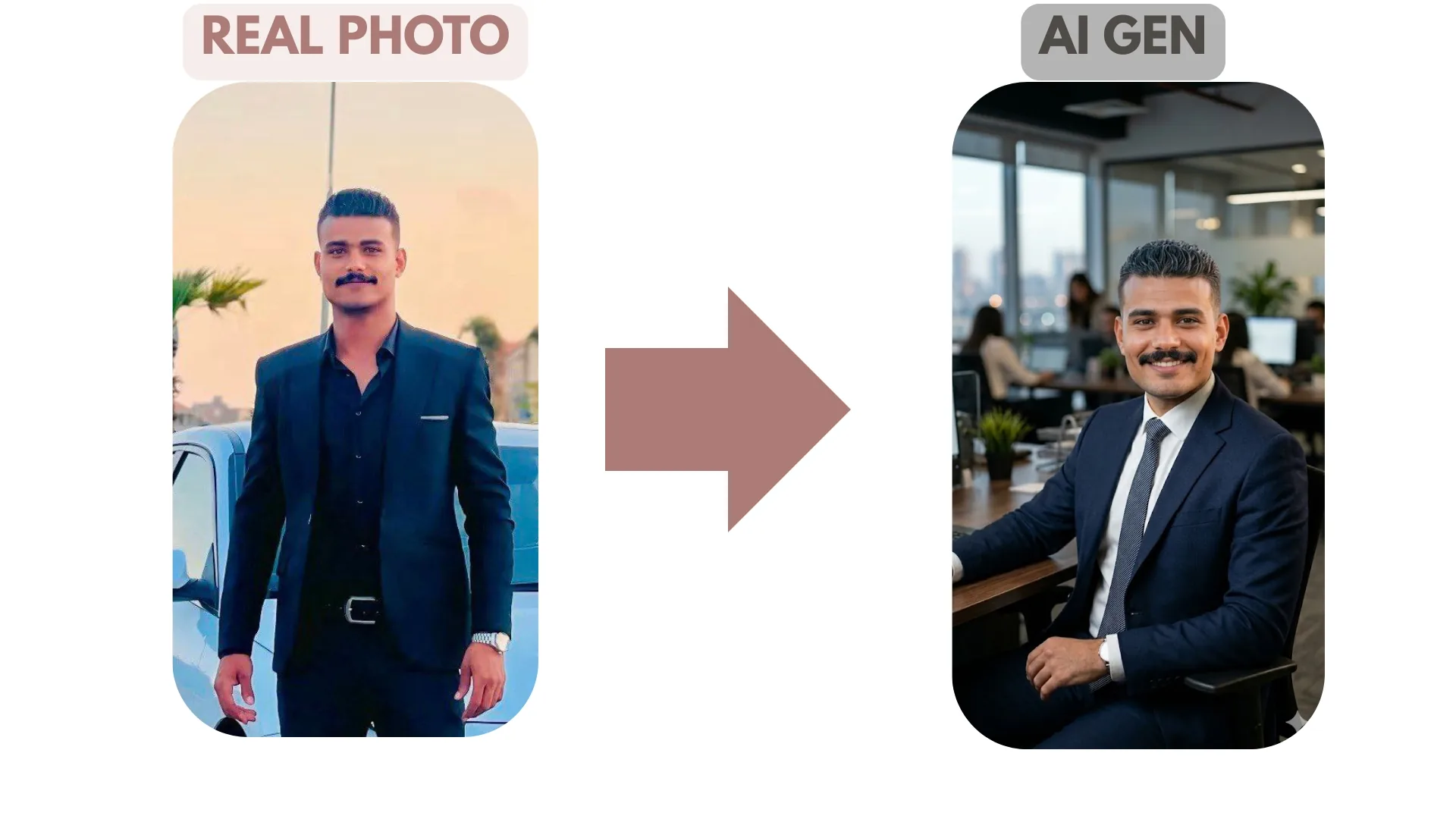
How to Create Professional AI Headshots for LinkedIn & CVs (2026 Guide)
Table of Contents
- Quick Summary
- Why Your LinkedIn Photo Is Your First Interview
- What Makes a Professional Headshot in 2026
- Step-by-Step: Creating Your AI Headshot
- Prompt Library: Generating Headshots from Scratch
- Tool Comparison by Use Case
- Headshot Styles by Industry
- Professional Tips
- Common Mistakes to Avoid
- Frequently Asked Questions
- The Future of Professional Headshots
Quick Summary
The short answer: Upload a clear, well-lit smartphone photo to the AI Portrait tool — it enhances lighting, corrects skin tone, and applies studio-quality finishing in seconds. Then remove the background with the Remove Background tool, replace it with a neutral professional tone, and run the final image through the AI Image Upscaler to meet LinkedIn and CV resolution requirements. Total time: under 10 minutes. Total cost: free. The step-by-step workflow, prompt library, and per-industry style guide are all below.
Why Your LinkedIn Photo Is Your First Interview
I've had this conversation more times than I can count: someone emails asking why their LinkedIn profile gets half the views of a colleague with comparable credentials. Nine times out of ten, the answer is visible before a single word is read — it's the photo. Not the absence of a photo, but a phone selfie, a cropped wedding shot, or a photo that was fine for Instagram but signals zero professional intent on a career platform.
The structural problem is that professional headshots cost $200–$500 a session, require scheduling, and produce results that date quickly. Most people default to whatever's already on their phone. LinkedIn profiles without photos receive up to 21× fewer profile views than those with one, and a technically poor photo often performs worse than no photo at all — it signals that you didn't bother to put in the effort.
AI portrait tools changed this math entirely. What a professional photographer does in a studio — correct the lighting, balance skin tones, apply a clean background, deliver a high-resolution export — you can now replicate in under 10 minutes from any clear smartphone photo, at no cost. The step-by-step workflow below is exactly what I use for my own professional photos and what I've built into the tools on this platform.
The Cost of a Poor LinkedIn Photo
- 21× fewer profile views than profiles with professional photos
- First impression formed before any text is read — photo quality signals professional standards
- Recruiters use profile photos to confirm identity before interviews — a mismatched photo creates friction
- Poor lighting reads as low effort; distracting backgrounds dilute credibility
- In competitive job markets, visual first impressions determine whether the rest of the profile is explored
What AI Headshots Now Make Possible
- Studio-quality lighting corrections from a smartphone photo
- Clean professional backgrounds without a backdrop or studio
- Outfit swaps for industry-appropriate attire without reshooting
- 4K-resolution output that meets platform requirements
- Multiple style variants (corporate, creative, executive) from one base photo
- Total time under 10 minutes, total cost zero
What Makes a Professional Headshot in 2026
Before processing anything, it is worth understanding the visual criteria that define a professional headshot. These apply whether the photo was taken in a studio or enhanced by AI — the output needs to satisfy the same visual expectations.
| Element | Professional Standard | Common Amateur Failure |
|---|---|---|
| Framing | Head and upper chest centered, slight headroom above, chin at lower third | Full body, extreme close-up, or cropped from a group photo |
| Lighting | Even, soft, no harsh shadows under eyes or chin; key light slightly off-axis | Direct flash, overhead fluorescent, backlit from window |
| Background | Neutral solid color or very soft bokeh; no competing visual elements | Bedroom, messy office, busy street, visible furniture |
| Expression | Confident, approachable, natural — slight smile or neutral direct gaze | Sunglasses, extreme expressions, eyes not visible |
| Attire | Industry-appropriate, well-fitted, no visible wrinkles or logos | Casual clothing, sports gear, event outfits |
| Resolution | Minimum 400×400px; recommended 800×800px for LinkedIn zoom | Pixelated, low-resolution crop, JPEG compression artifacts |
AI tools fix the technical elements — lighting, background, resolution, skin tone. They cannot fix poor framing, sunglasses, or a genuinely unflattering expression. The workflow below covers what AI can and cannot address at each step.
Step-by-Step: Creating Your AI Headshot
This five-step workflow takes a smartphone photo to a LinkedIn-ready professional headshot. Steps 1–3 are essential for everyone. Steps 4 and 5 are optional upgrades for specific situations.
Step 1 — Capture a Clean Base Photo
The quality of your AI-enhanced headshot is determined by your input photo. AI portrait tools enhance and reconstruct — they cannot invent detail that was never captured. A clean, well-lit base photo produces a professional result; a blurry, poorly lit input produces a polished version of a bad photo.
The ideal base photo setup:
- Light source: Stand facing a window with diffused natural light — overcast days are ideal. No direct sunlight (creates harsh shadows), no window behind you (creates silhouette)
- Camera: Any modern smartphone rear camera. Use portrait mode if available for natural background softening
- Framing: Head and upper chest, chin in the lower third of the frame, slight headroom above
- Background: Any simple, uncluttered surface — a plain wall or door is fine; AI will replace it
- Expression: Natural, relaxed, slight smile or neutral gaze — not a posed "photo smile"
- Resolution: Shoot at the highest available resolution; save as JPEG or PNG
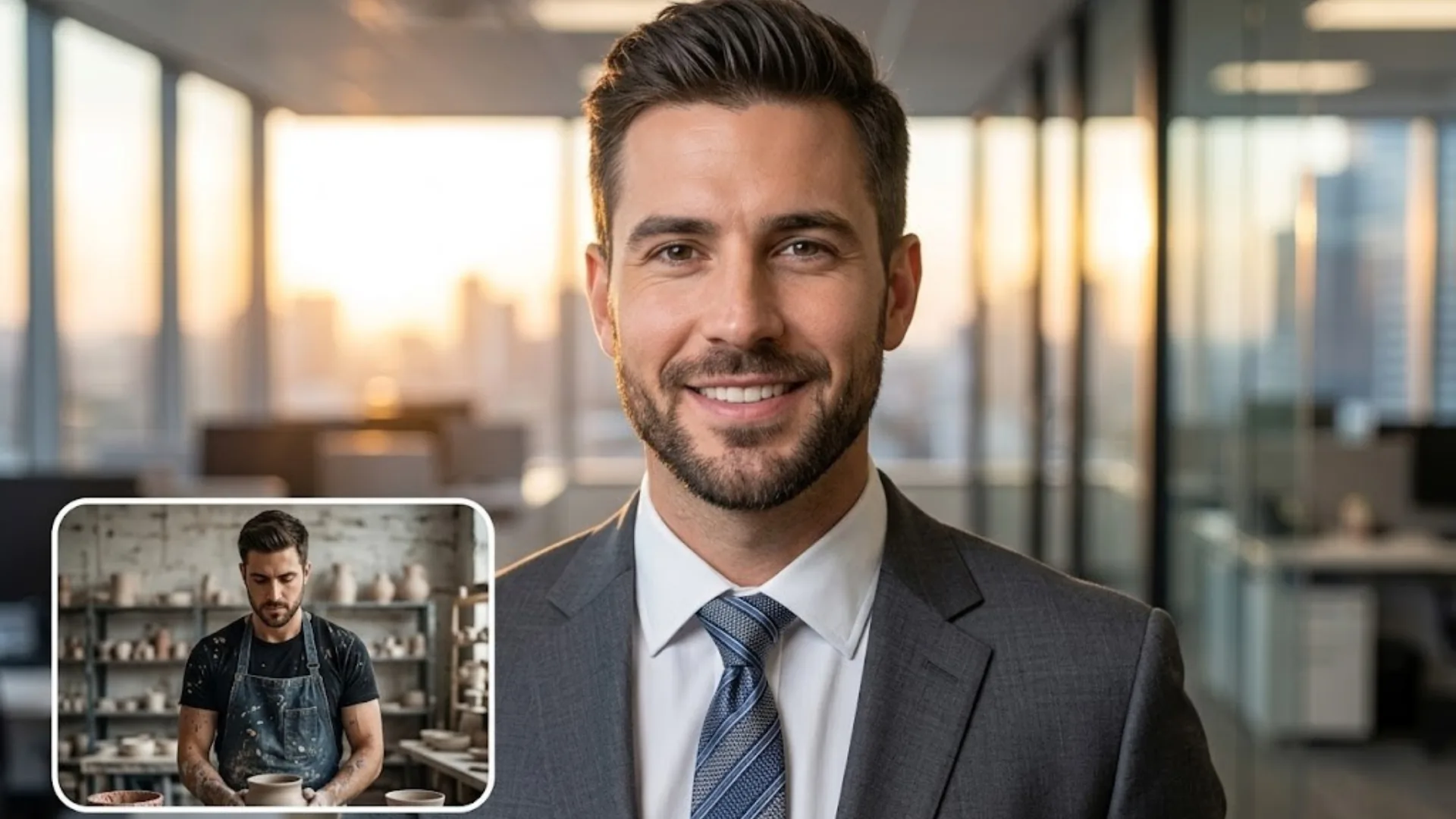
What makes a photo unusable for AI enhancement: Sunglasses covering the eyes, severe motion blur, face partially obscured by hair or hands, extreme angles (side profile, upward-looking), heavy filters or Snapchat-style face alterations. These prevent the AI from detecting and working with your actual facial features.
Step 2 — Apply AI Portrait Enhancement
Upload your base photo to the AI Portrait tool. This step handles the corrections that a professional photographer applies in post-processing: lighting balance, skin tone evening, eye brightening, and hair definition. The goal is enhancement — the output should look exactly like you, under better light.
What the AI Portrait tool corrects automatically:
- Uneven lighting from indoor bulbs or mixed light sources — remapped to soft, neutral studio light
- Skin tone inconsistencies from patchy indoor light
- Slight eye brightening for a more alert, awake appearance
- Hair edge definition — individual strands sharpened without affecting the face
- Color temperature normalization — removes yellow cast from tungsten bulbs, blue cast from fluorescent
Select a style preset that matches your target industry or use a text prompt to specify the exact look. For corporate roles: "professional studio headshot, soft key light, neutral grey background, confident and approachable." For creative roles: "editorial portrait, natural window light, warm tones, relaxed and confident." For technical roles: "clean studio headshot, even lighting, minimal styling."
Enhance Your Portrait with AI
Studio-quality lighting and skin correction in seconds — no account, no cost.
Open AI Portrait ToolStep 3 — Remove the Background
A professional headshot needs a clean, distraction-free background. The background in your base photo is irrelevant — it will be replaced entirely. Upload the enhanced portrait from Step 2 to the Remove Background tool.
The tool isolates your subject from the background in under 5 seconds — preserving fine hair strands, the edges of your collar, and any background blur. The output is a transparent PNG ready for any new background.
Background color recommendations by industry:
- Corporate / Finance / Law: Light grey (#E8E8E8 to #D5D5D5) — authoritative, neutral, universally appropriate
- Healthcare / Education: Soft blue-grey (#D4DCE8) or warm white (#F5F5F0) — approachable and trustworthy
- Creative / Design / Media: White (#FFFFFF) or soft charcoal (#C8C8C8) — clean, contemporary
- Tech / Startup: Light gradient from white to pale blue — modern without being corporate
- Executive / C-Suite: Dark charcoal (#4A4A4A) or deep navy — premium, authoritative
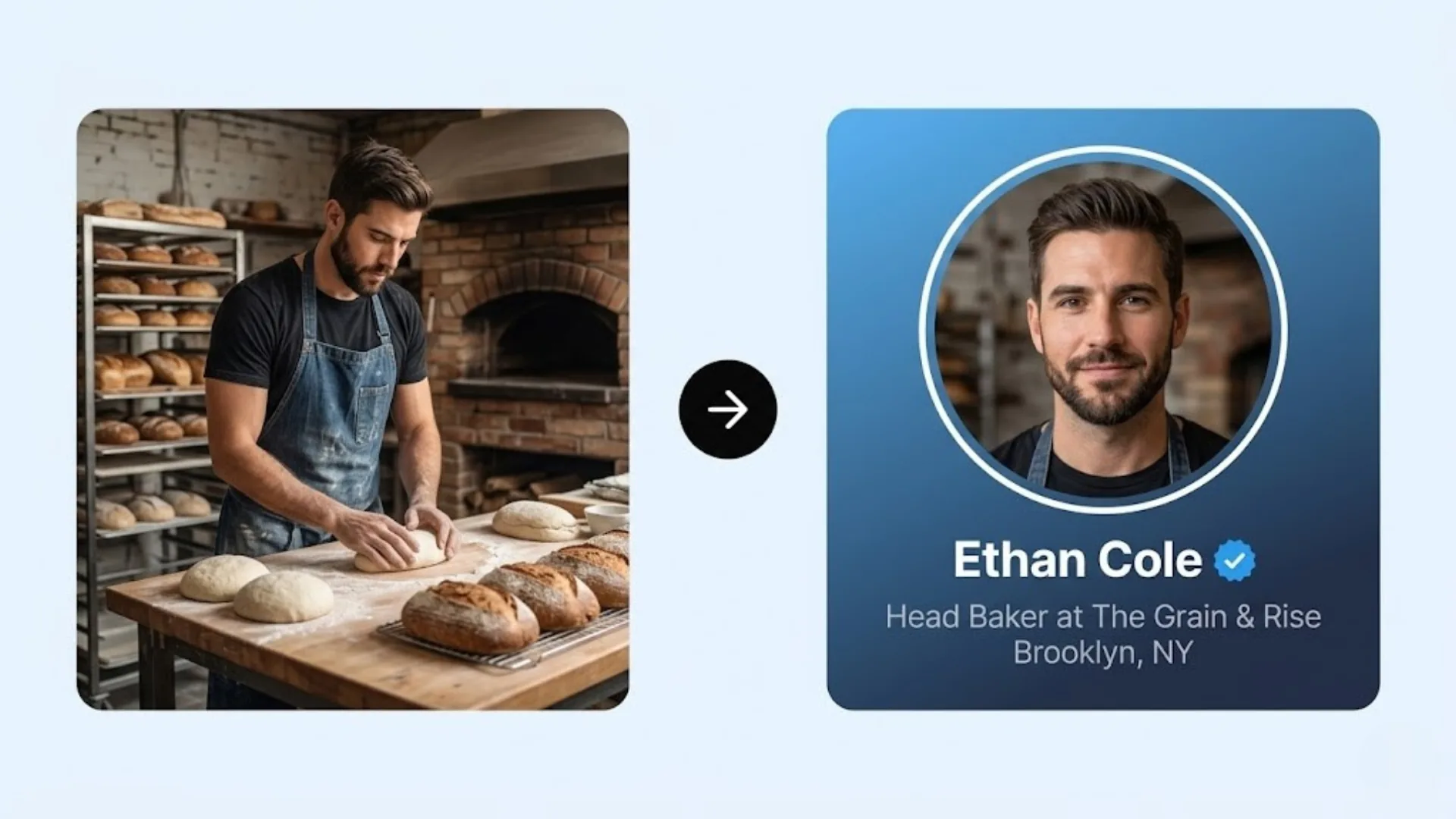
To add the new background: download the transparent PNG, open it in any image editor (Canva, Google Slides, even PowerPoint), and place it over a solid color rectangle. Alternatively, use the AI Background Generator to create a subtle, professional backdrop — soft bokeh, architectural blur, or a clean studio gradient — that places you in a professional context without a studio shoot.
Remove Your Background in 5 Seconds
No account. No watermark. AI-accurate edge detection including fine hair.
Remove Background FreeStep 4 (Optional) — Swap Your Outfit with AI Replace
If you were wearing casual clothing when you took the photo, you do not need to reshoot. The AI Replace tool lets you brush over your clothing and generate industry-appropriate attire via a text prompt.
| Situation | AI Replace Prompt |
|---|---|
| Corporate — formal male | "A tailored charcoal grey business suit with a crisp white shirt and subtle navy tie, well-fitted, professional" |
| Corporate — formal female | "A tailored navy blazer with a crisp white blouse, professional and polished" |
| Smart casual — tech/startup | "A high-quality minimalist black turtleneck, fitted, clean and modern" |
| Creative industry | "A well-cut dark denim shirt, professional casual, clean styling" |
| Healthcare professional | "A clean white medical coat over a professional collared shirt" |
How to use AI Replace for outfit changes: Upload your portrait with the removed background, brush over the clothing area you want to replace, paste one of the prompts above, and click Replace. The AI generates attire that matches the lighting, angle, and perspective of your original photo. Review the result — if the first output is slightly off, refine the prompt with more specific details about fit or color.
Step 5 — Upscale to Platform Requirements
LinkedIn recommends a minimum of 400×400px for profile photos, with 800×800px or higher for quality zoom. Many CV and portfolio platforms require 300 DPI for print. If your base photo was taken on a mid-range smartphone or is smaller than 1000×1000px, run it through the AI Image Upscaler before final export.
AI upscaling reconstructs missing pixel detail from surrounding context — it sharpens the edges of your hair, jacket collar, and face without the halo artifacts that standard software interpolation produces. The result is a photo that looks sharp on large desktop displays and in print without ever having been captured at high resolution.
Upscale to LinkedIn-Ready Resolution
2× or 4× upscaling — sharp edges, no compression artifacts.
Upscale Your HeadshotPrompt Library: Generating Headshots from Scratch
If you prefer to generate a photorealistic avatar or professional persona from scratch — rather than enhancing an existing photo — AI image generators like Midjourney, DALL-E 3, and Google Gemini can produce profession-grade results. The following prompts are structured for maximum output quality. For a deeper understanding of prompt architecture, see the complete guide to AI photo editing prompts.
Replace bracketed placeholders with your specifics. All prompts follow the framework: Subject + Attire + Lighting + Background + Technical Specs.
"Professional LinkedIn headshot of a [30s / 40s, male / female], wearing a tailored charcoal grey business suit with crisp white shirt and subtle navy tie. Soft studio lighting with key light slightly left, neutral light grey background, confident and approachable expression, shot on 85mm lens, f/1.8, ultra-realistic, 8K resolution, --ar 4:5"
"Professional tech industry headshot of a [25–35, male / female], wearing a high-quality minimalist black turtleneck. Natural window light from the left, soft shadows, modern white-to-light-grey gradient background, direct confident gaze, contemporary styling, 8K photorealistic, shot on full-frame camera, --ar 1:1"
"Editorial portrait for creative professional LinkedIn, [late 20s–30s, male / female], wearing a well-cut dark denim shirt with clean styling. Soft directional natural light, warm tones, slightly blurred clean white background, relaxed confident expression, not overly formal, 8K, editorial photography style, --ar 4:5"
--q 2
"Executive corporate headshot, [50s, male / female], wearing a premium tailored dark navy suit with white shirt. Dramatic side-lighting with strong key light and soft fill, deep charcoal background, authoritative composed expression, high contrast, premium photography quality, 8K, sharp focus on face, --ar 4:5 --q 2"
"Professional medical headshot of a [30s–40s, male / female], wearing a crisp white medical coat over a professional collared shirt. Even soft studio lighting, clean light blue background, warm approachable smile, trustworthy expression, photorealistic, hospital professional aesthetic, 8K, --ar 1:1"
"Professional university professor / academic headshot, [40s–50s, male / female], wearing smart-casual blazer in warm tone over collared shirt. Soft warm natural light, bokeh bookshelves in background, thoughtful and approachable expression, genuine smile, academic professional style, 8K photorealistic, --ar 4:5"
"Real estate professional LinkedIn headshot, [30s–40s, male / female], wearing a polished business casual blazer, warm smile, approachable and confident. Outdoor lifestyle background softly blurred — trees or modern building exterior. Warm natural light, golden hour feel, high-resolution professional photography, --ar 4:5"
"Professional corporate headshot, gender-neutral presentation, [late 20s–30s], wearing a well-fitted medium blue blazer with white shirt. Soft even studio lighting, neutral grey background, calm confident expression, contemporary professional styling, 8K, photorealistic portrait, --ar 1:1"
After generating from these prompts, run the output through the AI Image Upscaler if the resolution is under 1000px, and the AI Cleanup tool to remove any minor generation artifacts before uploading to LinkedIn.
Tool Comparison by Use Case
Different scenarios call for different approaches. This table maps your situation to the right combination of tools.
| Situation | Recommended Tools | Workflow Order |
|---|---|---|
| I have a decent photo, need it to look professional | AI Portrait → Remove BG → Upscaler | Enhance → Clean → Export |
| I have a good photo but wrong clothes | AI Portrait → Remove BG → AI Replace | Enhance → Remove BG → Swap outfit |
| I want a lifestyle professional background | Remove BG → AI Background Generator | Remove → Place on generated scene |
| I want to generate an avatar from scratch | AI Image Generator + prompts above | Generate → Upscale → Cleanup |
| I have a low-resolution old photo | Upscaler → AI Portrait → Remove BG | Upscale first — give AI more data to work with |
| I need to clean up minor artifacts | AI Cleanup | Apply after all other edits as a final pass |
Headshot Styles by Industry
The visual language of a professional headshot varies by industry. What reads as authoritative in financial services reads as stiff in creative roles. What reads as approachable in healthcare reads as underdressed in law. Match your headshot style to the visual norms of your specific sector.
Finance, Law, Consulting
Attire: Dark suit, crisp shirt, tie for men; structured blazer for women. Nothing casual.
Background: Medium grey or dark charcoal. No lifestyle or outdoor elements.
Expression: Confident, composed, professional — not warm. Trust and competence over approachability.
Lighting: Clean studio, even, no soft romantic bokeh.
Tech, Product, Engineering
Attire: Smart casual — well-fitted dark turtleneck, quality shirt, or minimal blazer. No tie required.
Background: Clean white, light grey gradient, or very subtle office bokeh.
Expression: Direct, intelligent, approachable — slight natural smile.
Lighting: Natural window or clean studio. Warmer tones acceptable.
Healthcare, Social Services
Attire: Medical coat or professional scrubs for clinical roles; smart formal otherwise.
Background: Soft blue-grey or clean white — calming, neutral, safe.
Expression: Warm, genuine smile — approachability and compassion over authority.
Lighting: Soft, even — no harsh shadows that read as unfriendly.
Creative, Design, Media
Attire: Stylish but controlled — quality denim, artistic accessories acceptable, no business suit needed.
Background: Can include studio, white, or very subtle creative context (blurred workspace).
Expression: Relaxed, genuine personality — personality matters in creative roles.
Lighting: Directional, editorial, warm tones. More latitude than corporate.
Academic, Research, Education
Attire: Smart-casual blazer with collared shirt — professional but not corporate.
Background: Bokeh bookshelves or neutral grey — the bookshelf contextualizes expertise.
Expression: Thoughtful, approachable, genuine smile — authority balanced with warmth.
Lighting: Soft warm natural light preferred.
Real Estate, Sales, Marketing
Attire: Polished business casual — blazer without tie, quality fabric visible.
Background: Outdoor lifestyle softly blurred (architecture, trees) — real estate context.
Expression: Wide warm smile — likability is the primary signal in client-facing roles.
Lighting: Golden hour outdoor light or warm studio. Energy and warmth.
Professional Tips
Photo Capture Tips
- Take the photo specifically for this purpose. A repurposed social media image, event photo, or vacation selfie will always produce a worse result than a photo taken intentionally for a professional headshot — even with AI enhancement. Spend 5 minutes setting up the right conditions.
- Overcast days are ideal for outdoor light. Direct sunlight creates harsh, unflattering shadows. Diffused natural light on an overcast day produces the even, studio-quality illumination that AI tools work best with.
- Take 10–15 frames, not one. Micro-expressions vary significantly between frames. The natural, relaxed expression that reads as "confident professional" is different from the posed "photo smile" that looks forced. Multiple frames give you options.
- Wear solid colors, not patterns. Stripes, prints, and patterns distract from the face. Dark navy, charcoal, and muted tones generally photograph better and age better than bright or trendy colors.
AI Processing Tips
- Process background removal before any other edit. Running background removal after portrait enhancement can introduce edge artifacts at the hair–background boundary. Always remove the background on the raw or minimally processed source image.
- Use AI Portrait enhancement subtly. The most common mistake is over-enhancing — the output looks hyper-smooth and artificial. Target an enhancement level where you look like the best version of yourself, not a different person. Generate 2–3 variations and select the most natural one.
- Export at the highest available resolution before compression. LinkedIn and most platforms compress uploaded images. Starting from a higher-resolution source means the compressed result is still sharp. Export at 2× the display size you need.
- Use AI Cleanup as a final pass. Minor generation artifacts, stray hair strands, or inconsistencies in the background edge can be addressed with a quick pass through the AI Cleanup tool after all other processing is complete.
Ethical guideline: Enhancement is universally accepted in professional photography — it is exactly what every studio photographer delivers. The ethical line is alteration of identity. Correcting uneven lighting: enhancement. Removing a temporary blemish: enhancement. Slimming your face, changing your skin color, or altering your features to the point of unrecognizability: alteration. Apply the test: Would someone who meets you in person recognize this as clearly you? If yes, your edits are within normal professional practice.
Common Mistakes to Avoid
✓ What Produces Professional Results
- Front-facing, head and chest framing with natural light
- AI Portrait enhancement at a subtle, natural level
- Neutral background appropriate to your industry
- Industry-appropriate attire — physical or AI-replaced
- Upscale before compression for platform upload
- AI Cleanup as a final pass for minor artifacts
✗ Common Errors That Undermine the Photo
- Using a cropped group photo or event photo as the base
- Over-enhancing to the point of looking artificial or airbrushed
- Leaving a distracting or cluttered background
- Wearing sunglasses, hats, or accessories that obscure the face
- Uploading without upscaling first — result looks blurry after platform compression
- Using the same photo for 5+ years — visual identity and style age, even if you haven't
- Mismatching industry visual norms — a formal suit headshot for a creative role, or casual attire for finance
Frequently Asked Questions
Can AI really create a professional-looking headshot?
Yes. Modern AI portrait tools enhance lighting, balance skin tones, and apply studio-quality corrections to any clear photo. Combined with background removal and upscaling, the result is indistinguishable from a professionally photographed headshot for most digital use cases including LinkedIn, CVs, and company websites. The output quality depends primarily on input photo quality — a well-framed, well-lit smartphone photo produces professional results.
Do I need a professional camera to create an AI headshot?
No. A modern smartphone camera is sufficient. The most important factors are good lighting (natural window light works perfectly), a clean line-of-sight to your face, and stable framing. AI tools enhance the technical quality from there — they cannot recover a severely blurred, poorly framed, or extremely low-light photo, but they perform well from any clear smartphone image.
What background color is best for a LinkedIn headshot?
Neutral tones work best across all industries: light grey (#E8E8E8), off-white (#F5F5F0), soft blue-grey (#D4DCE8), or warm beige (#F0EDE8). Pure white can look clinical on screen. Dark charcoal or navy work well for executive roles. Avoid heavily textured, patterned, or colorful backgrounds — they compete with your face. The background's only function is to frame your face cleanly.
Is it ethical to use an AI-enhanced photo on LinkedIn?
Yes, within limits. Correcting lighting, evening skin tone, removing a distracting background, sharpening resolution — these are identical to what a professional photographer delivers. The ethical boundary is altering your appearance: changing facial structure, significantly altering skin color, or producing a result that would make you unrecognizable to someone who meets you in person. Enhancement of existing features is standard professional practice; fabrication is not.
How do I remove the background from my headshot for free?
Upload your photo to the Remove Background tool — it isolates the subject from any background in under 5 seconds at no cost, with no account required. The output is a transparent PNG you can place on any new background color or scene. For a professional lifestyle background, the AI Background Generator creates contextually appropriate environments from a text description.
The Future of Professional Headshots
The barrier between "I need a professional headshot" and "I have a professional headshot" has effectively been eliminated. What required a studio booking, a professional photographer, and $200–$500 six years ago now requires a smartphone, a window, and five minutes of processing in a browser. The quality gap between AI-enhanced photos and studio-produced photos is, for most digital use cases, no longer visible to non-professionals.
The direction this technology is heading makes the gap smaller still. Real-time face-consistent generation — where a single reference photo generates multiple professional headshots across different attire, backgrounds, and lighting scenarios while maintaining exact facial identity — is already in early deployment through tools like Midjourney's character reference system. Within 12–18 months, this will be a standard feature in consumer-facing portrait tools.
For anyone who needs a professional digital presence today — for a LinkedIn profile, a company website, a CV, a speaking bio, or a consulting proposal — the tools are available, free, and require no technical skill. The only remaining variable is the quality of the input: a clear, well-lit, well-framed photo that gives the AI something real to work with.
Create Your Professional Headshot Now
AI Portrait enhancement, background removal, upscaling — all free, no account required.